New Version 1.30.0Version 1.4.0
A new look for every widget
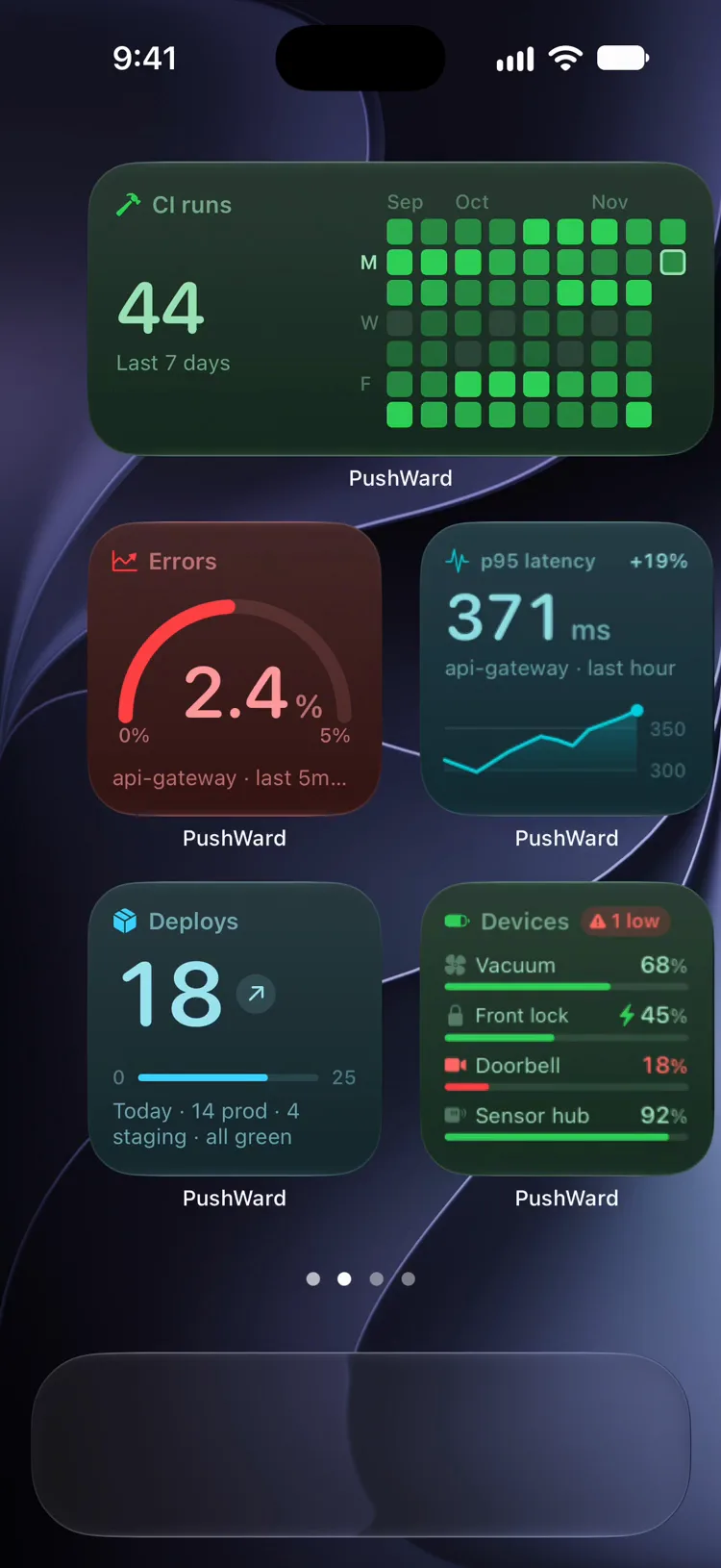
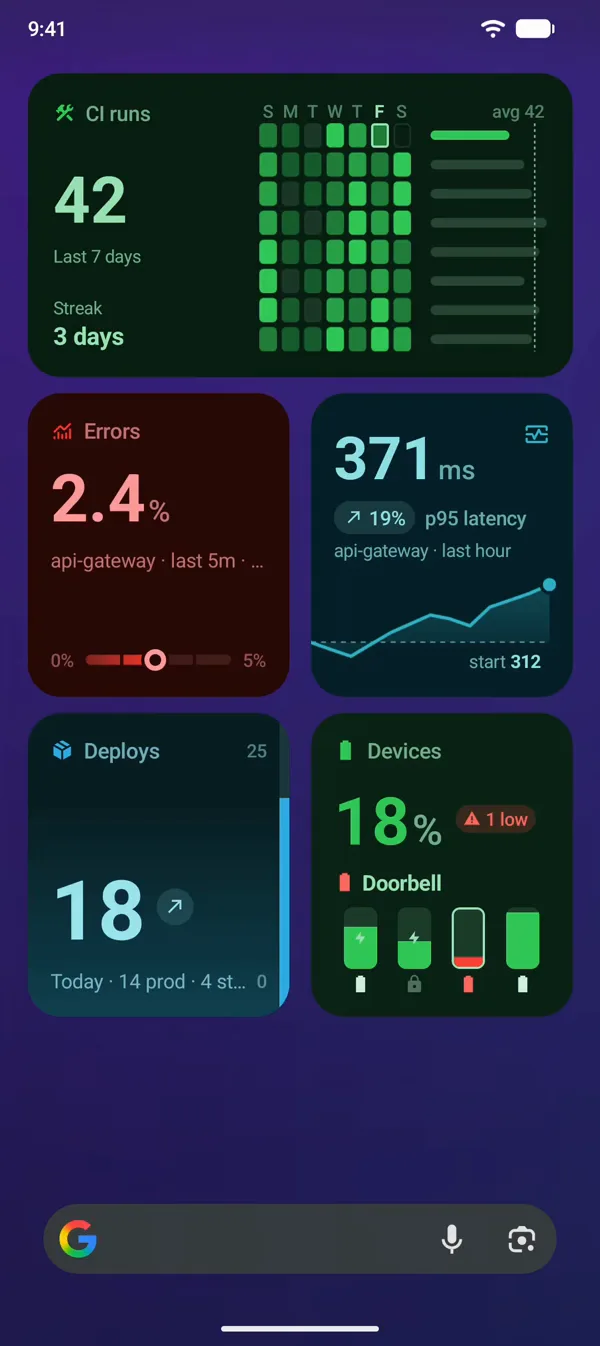
New widgets get Standard, a new default look. Bold shows the same data another way, and Classic keeps the earlier design, which the widgets already on your Home Screen stay on until you pick another. Every widget has all three, and the look can differ from size to size.New widgets get Standard, a new default look. Bold shows the same data another way, and Classic keeps the earlier design, which the widgets already on your home screen stay on until you pick another. Every widget has all three, and the look can differ from size to size.



Three looks, one widget
Same data, same size. Only the layout changes, and you pick it per widget.


Standard
The value turns white with its change in the corner, and the line chart gets gridlines with their values.The ring opens into a wide arc with the value in white, the state next to the title and the SLO in a row of its own.
Bold
The value and its change lead, and the line runs across the whole card from its low to the latest point.The value leads in large type with the state under it, and a ruler along the bottom marks where it sits.
Classic
The look widgets had before this update: the value in the accent color and the details as chips. Every widget has it.The look widgets had before this update: the value in a small ring and the details as chips. Every widget has it.
Before and after, widget by widget
On the left, each widget as it looked before the update. On the right, the same widget in the style you pick.


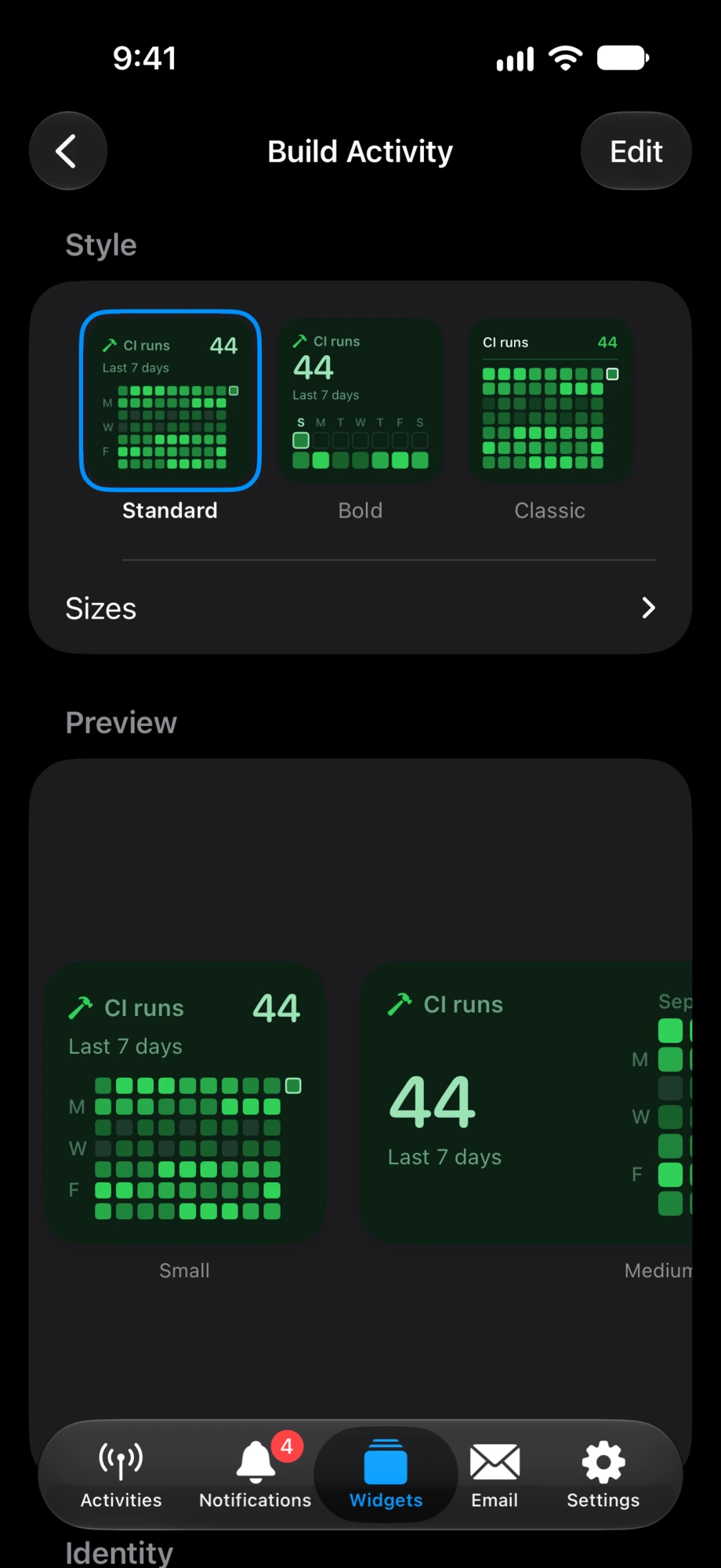
Pick a look for each widget
Open a widget on iPhone or iPad and choose its look under Style, for every size or one size at a time, and a stat list's Row Density the same way. Each widget keeps its own pick, so one Home Screen can hold all three.Open a widget in the Widgets tab and choose its look under Style, for every size or one size at a time, and a stat list's Row Density the same way. Each widget keeps its own pick, so one home screen can hold all three.
Who decides the look
- If the sender sets a look or a Row Density through the API, for every size or for one, the widget keeps it there. The app still previews the other looks.
- If not, the widget shows what you pick in the app: for its size, else for every size.
- If neither is set, it shows Standard.
Home Screen widgets get the styles in every size, and many Lock Screen widgets do too. Widgets on Apple Watch and the Mac keep their current design.
Two new templates
A list you tick off as you go, and a grid with one square for every day.
checklist
Tick off a list as you go
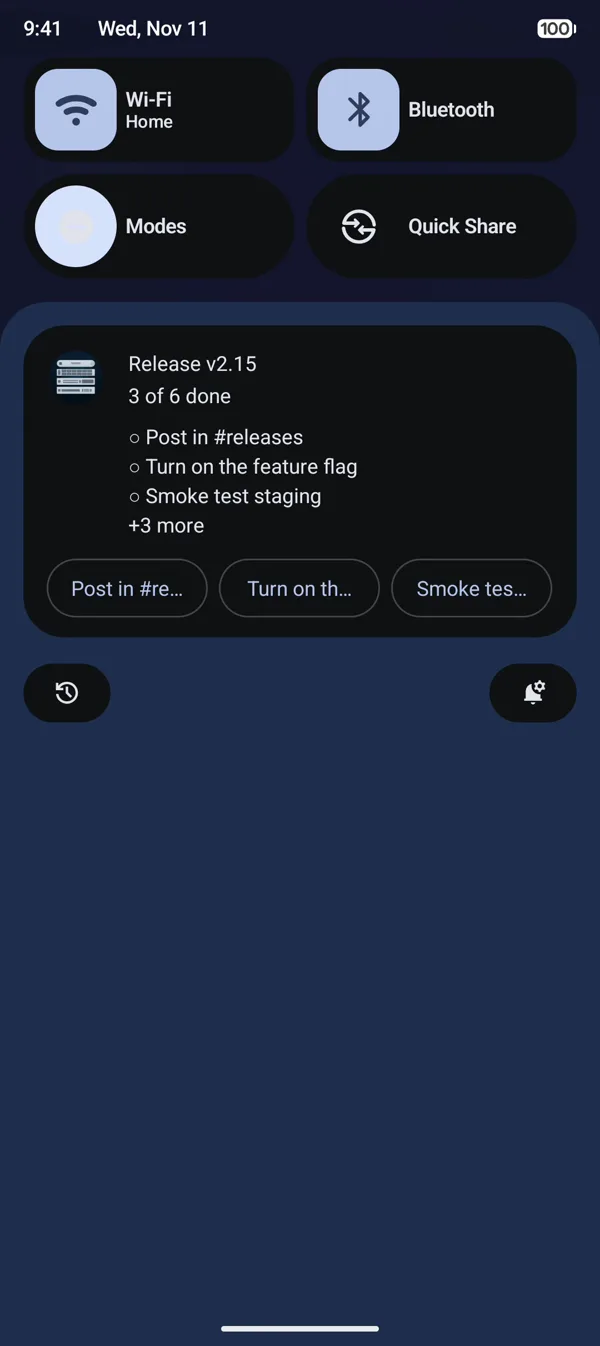
The new Checklist template puts a short list on the Lock Screen and in the Dynamic Island, on Apple Watch and on your Mac. Tap a row to tick it and every device shows the new count. Once every item is ticked the card reads All done, and a few seconds later it ends on its own.The new Checklist template is a Live Update in the shade: the items with a check mark on the ticked ones, the count in the header and a button for each of the next three open items. Tap one to tick it and every device shows the new count. Once every item is ticked the card reads All done, and a few seconds later it ends on its own.
Read the Docs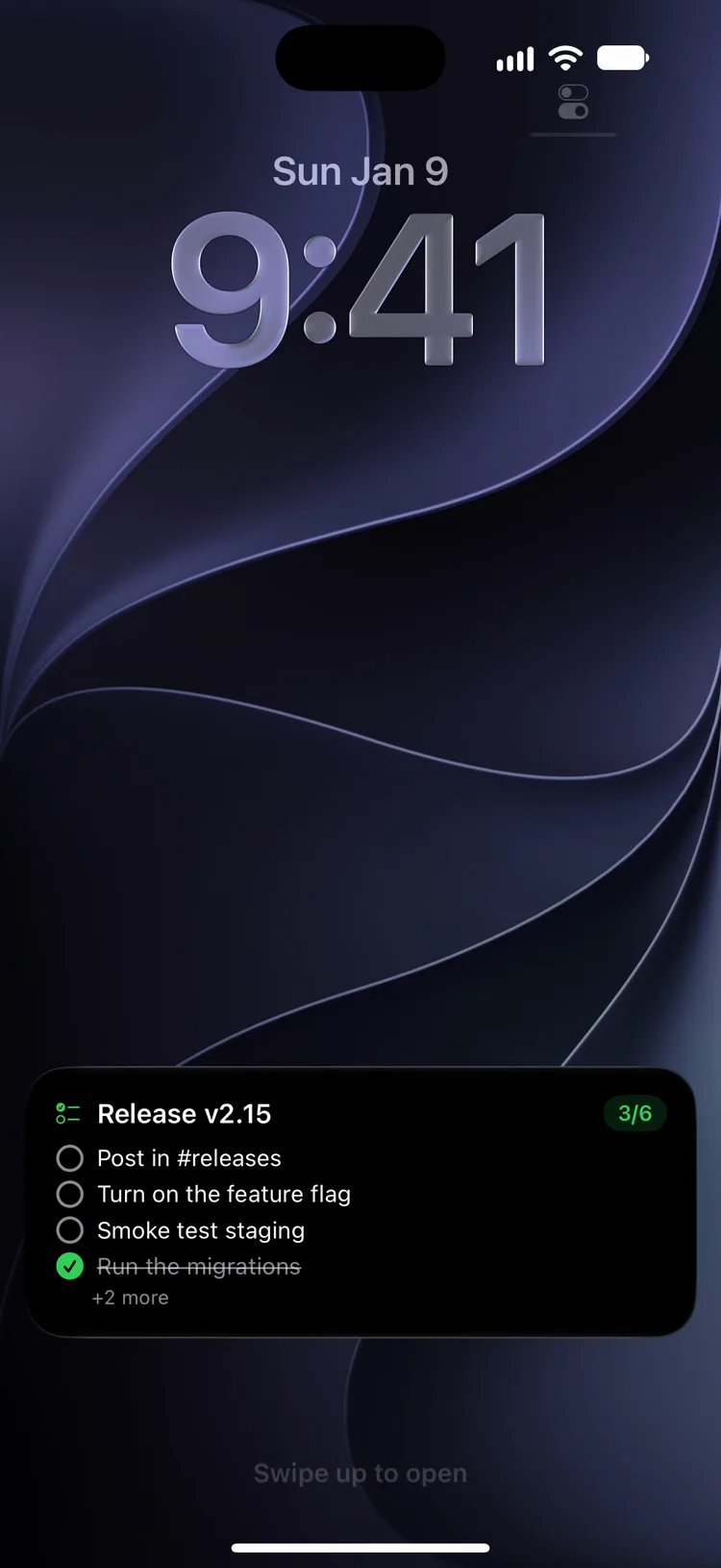
heatmap
Every day in one grid
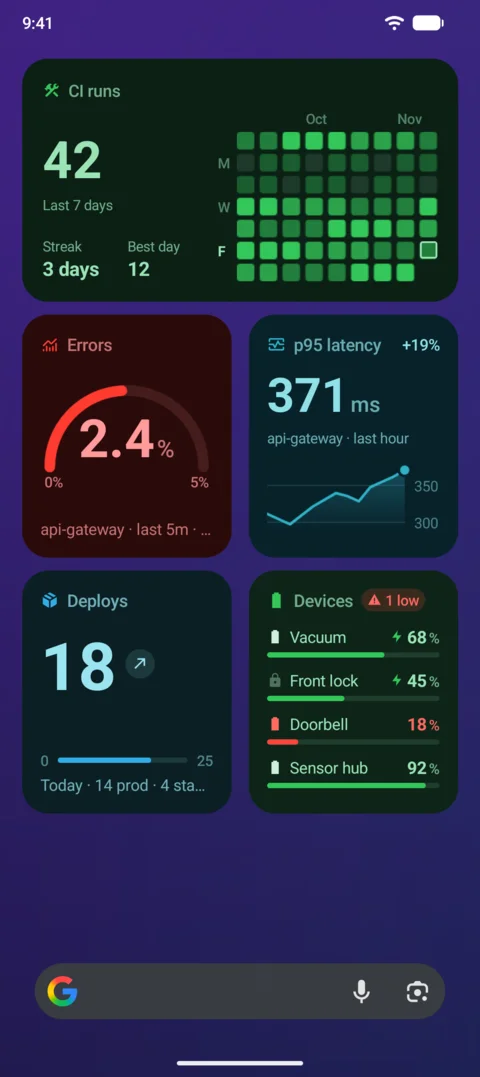
The new Heatmap widget draws one square per day, shaded in five steps from faint to the full accent color, so busy and quiet days stand out at a glance. A medium or large widget holds up to 22 weeks. Send the raw daily values and PushWard does the shading. It works on the Lock Screen and Apple Watch too.The new Heatmap widget draws one square per day on your home screen, shaded in five steps from faint to the full accent color, so busy and quiet days stand out at a glance. Send the raw daily values and PushWard does the shading.
Open a heatmap widget in the PushWard app on Apple Watch for its grid of recent weeks, with the total, the current streak and the best day under it.
Read the Docs

Tidier Live Activity cards
Each pair is the same Live Activity before and after the update, on the Lock Screen and in the expanded Dynamic Island.
Lock Screen


Dynamic Island


Also in this update
- On Apple Watch, a media card shows the title with the elapsed time, the device and artist, and a thin position bar.
- The expanded Dynamic Island shows four log lines without cutting off the last one, keeps the steps card's buttons whole and no longer clips the corner of an image.
- A long activity name stays clear of a wide timer in the app's island preview and at the Mac notch.
- On the Mac, menu bar cards update as soon as a button you tapped gets its answer.
- Widget display settings are cleared when you sign out and when a widget is deleted on another device.
Get the update
Update PushWard from the App Store. Your widgets switch to Standard on their own; open one to pick another look.

Update PushWard from Google Play. Your widgets switch to Standard on their own; open one to pick another look.