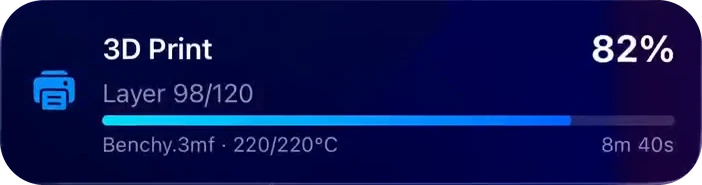
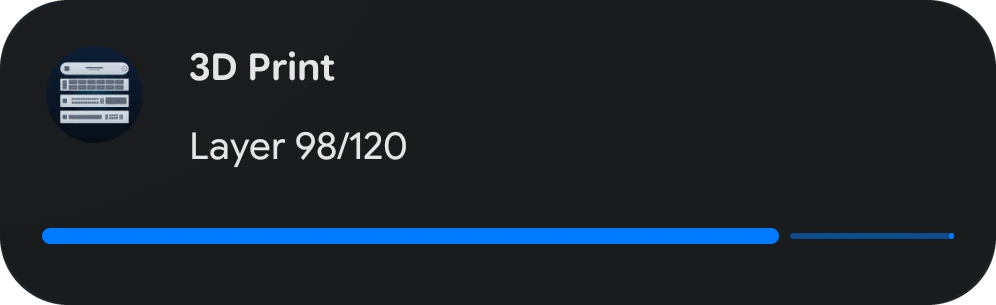
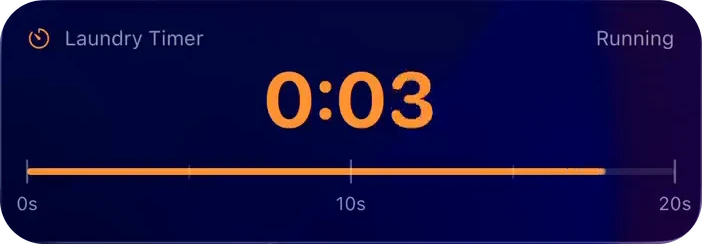
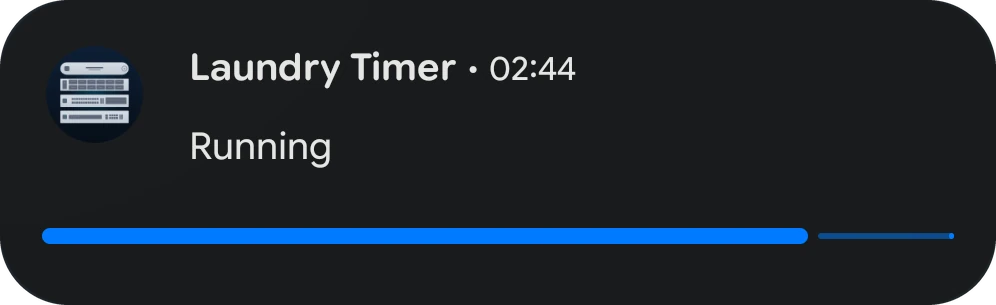
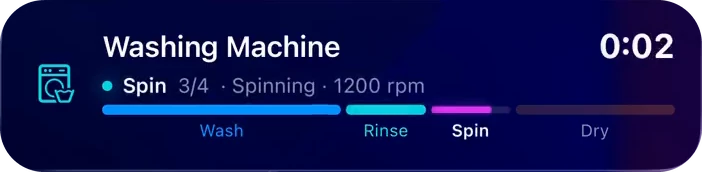
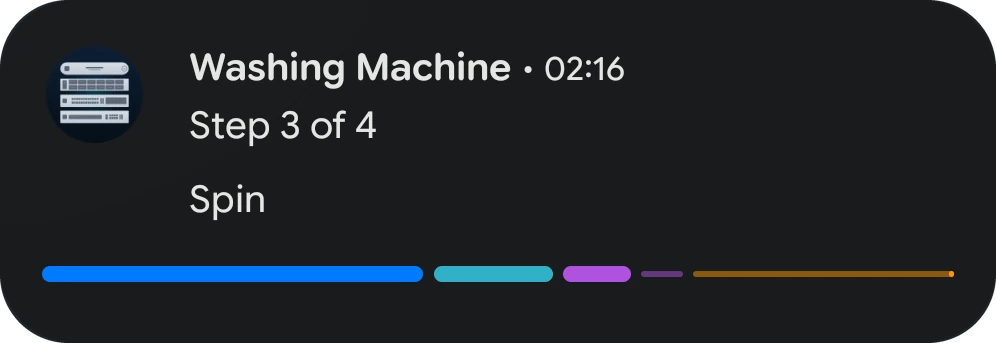
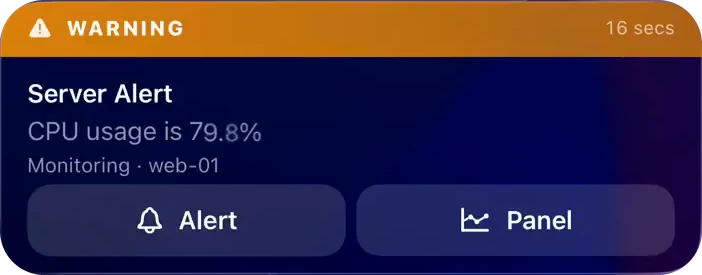
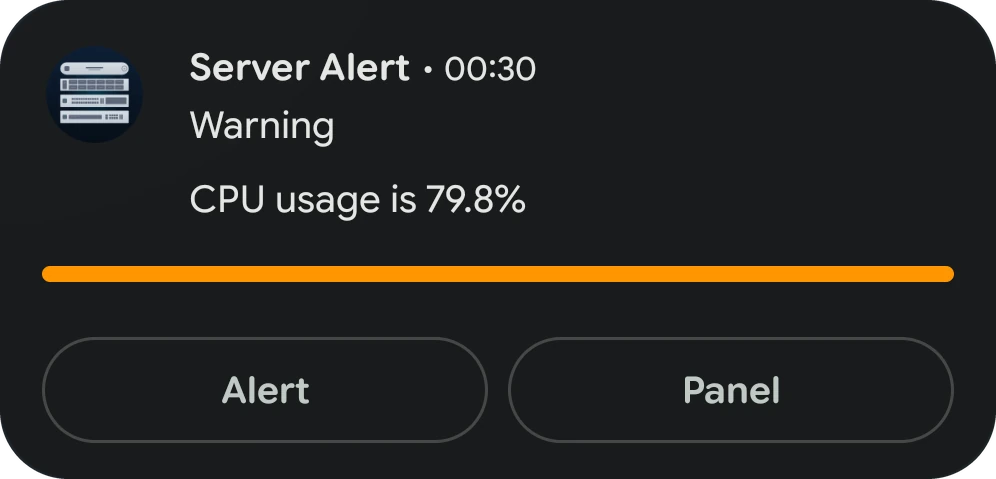
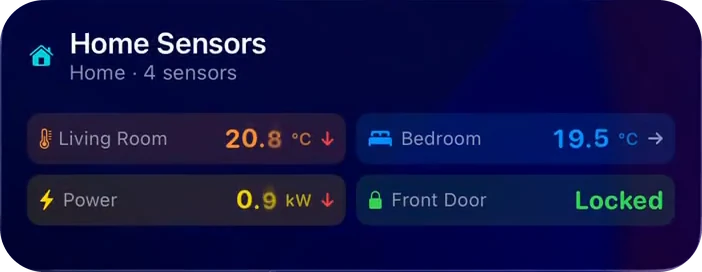
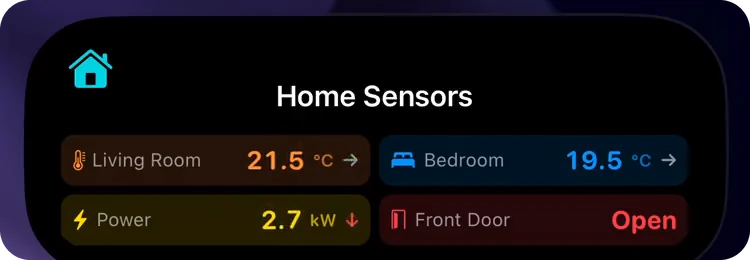
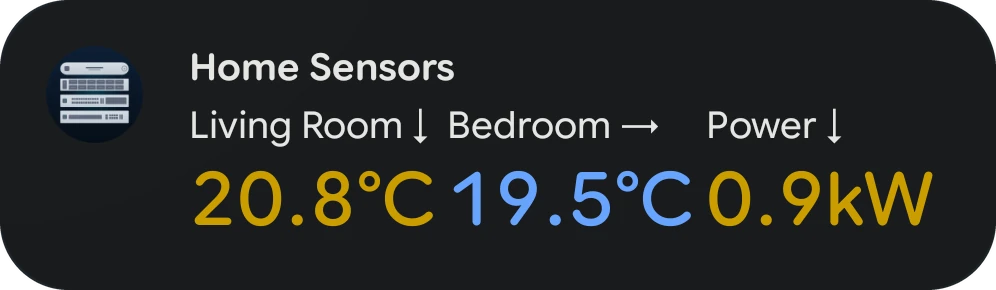
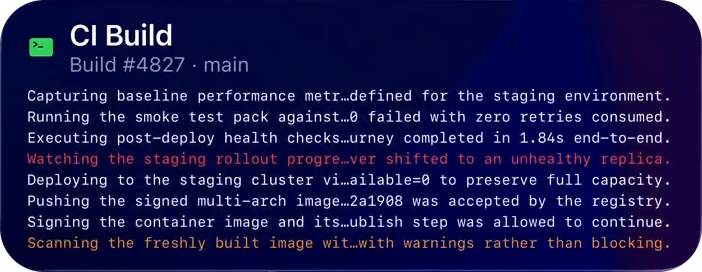
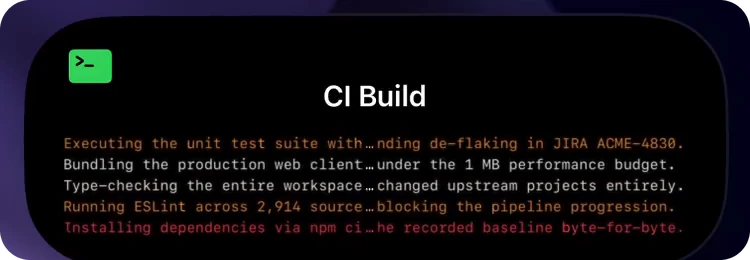
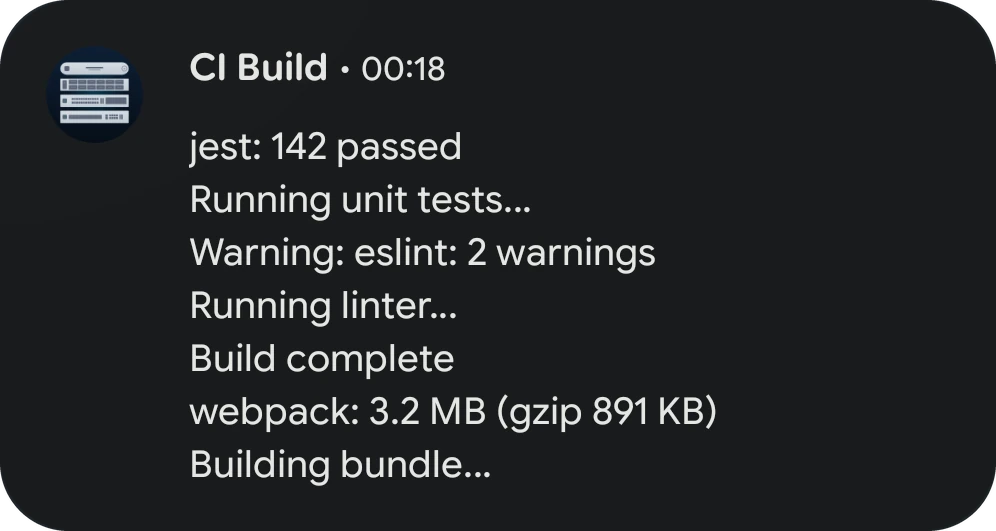
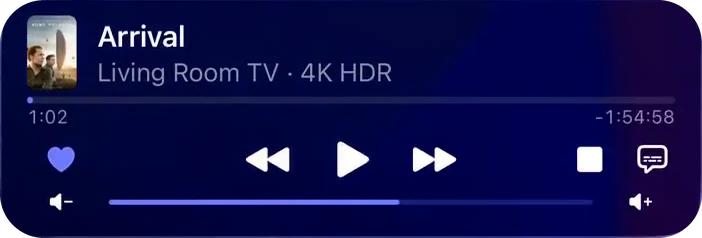
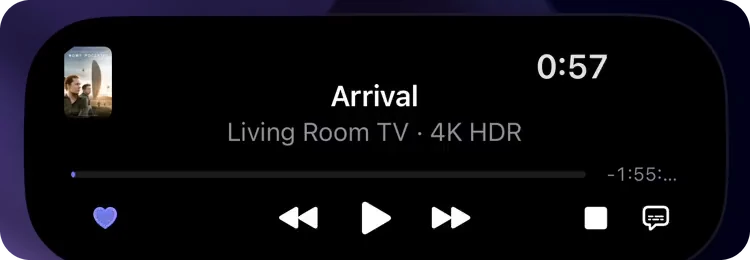
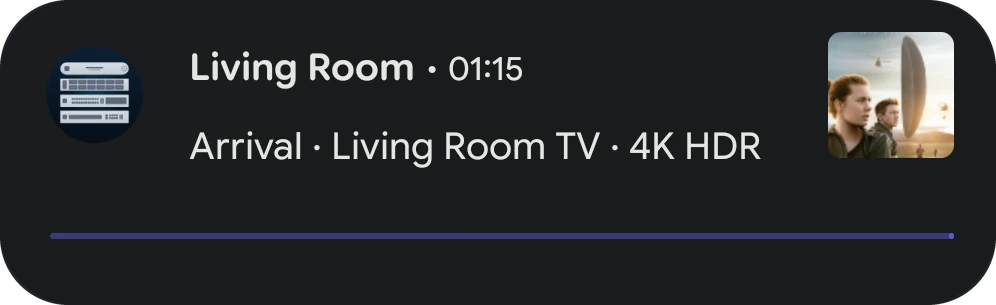
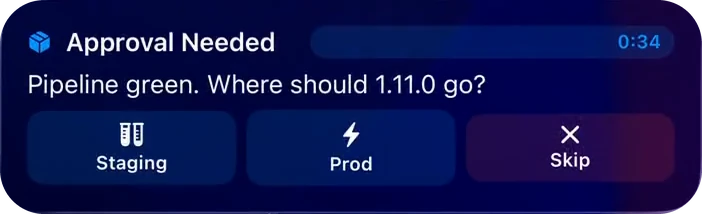
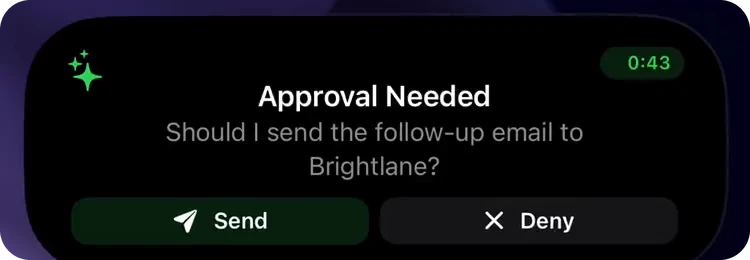
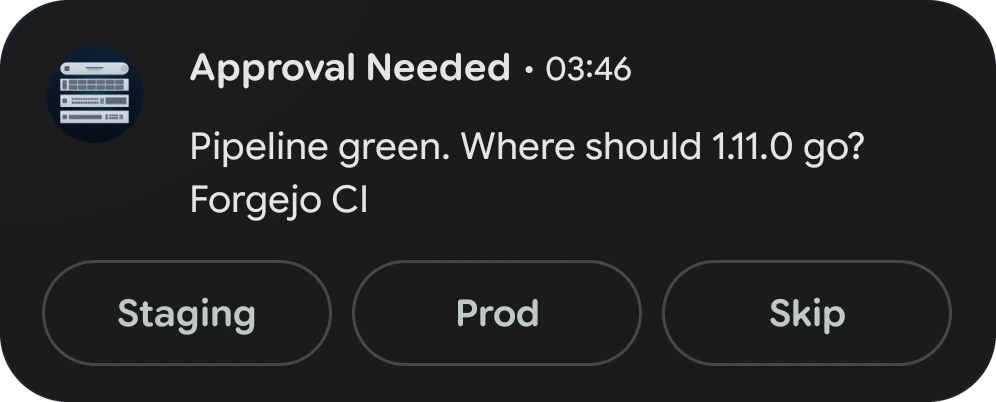
The same request shows a Live Activity on iPhone and a Live Update on Android. Here is where each one appears and how every template looks and behaves on both.
One request reaches all of your devices. An iPhone shows the activity as a Live Activity. An Android phone shows it as a Live Update, a notification that keeps itself current in the shade. The templates and content fields are the same on both, and nothing in the request is platform-specific. What changes is where each system lets the card appear and how much of a template it can draw.
ℹInfo
Apple Watch and CarPlay show the iPhone's Live Activity, so they follow the iOS column, and an iPad shows the Lock Screen card without the Dynamic Island. The PushWard Mac app has no Live Activities of its own: it lists ongoing activities in its notch island and menu bar.
Where an activity appears
Surface
iPhone (iOS 26+)
Android (12+)
Main card
Lock Screen card
A notification in the shade, promoted to the top of it on Android 16 and later
At a glance
Dynamic Island: a compact leading and trailing ear, or the minimal view when two activities share the island
One status bar chip (Android 16 QPR2 and later) with a short text, a running clock or the icon. The system hides it while PushWard is open
Expanded
Dynamic Island expanded view (touch and hold the island)
The expanded notification (pull it down). Buttons show only here
Lock screen
The Lock Screen card
The same notification, with its full content
StandBy
Full-screen card while the iPhone charges on its side
None
Watch
Smart Stack on a paired Apple Watch
None (no Wear OS app)
Car
CarPlay Dashboard
None
In the app
Activities tab; the detail screen previews the Lock Screen card, the Dynamic Island and the watch card
Activities tab; the detail screen previews the card expanded, collapsed and as the status bar chip
What each Android version shows
Android has improved ongoing notifications release by release, so the same activity looks richer on a newer phone:
Android
How the activity looks
12 and 13
A regular notification that updates in place, with a plain progress bar. Swiping it away hides it on that phone only
14 and 15
An ongoing notification: Clear all does not remove it and it stays on the lock screen, but on an unlocked phone it can still be swiped away on its own
16
A Live Update, promoted to the top of the shade and the lock screen, with segmented bars (steps) and points on the bar (timeline thresholds)
16 QPR2
Adds the status bar chip
17
Gauge and board become metric cards
Live Updates can be turned off per app in Android's notification settings. PushWard's activities then show as ongoing notifications, and the Activities tab offers a shortcut to the setting.
How updates arrive
iOS
Android
Who draws the card
iOS, straight from the push. The PushWard app does not need to run
The PushWard app, which receives the push and posts the notification. It has to be signed in
Update with sound
The Lock Screen lights up and the Dynamic Island expands, with the named sound
A heads-up notification with the sound of PushWard's Live Updates channel. Sound names are not used
Update without sound
The card changes in place
The card changes in place, with no sound or vibration
Clocks
Countdowns, elapsed times and playheads tick on their own between pushes
The same, as a system clock in the notification header and the chip
Progress bars
With live_progress, the generic and steps bars fill on their own toward end_date
A bar moves when an update arrives. With live_progress, the time left to end_date counts down in the header and the chip instead
Update budget
iOS limits how often a Live Activity can update (see Limits)
No hourly budget. A quick burst of updates is merged, so the newest state shows within a few seconds
Android has two cases of its own. Force-stopping PushWard clears its cards until you open the app again, and after a restart they come back when you open the app or with the activity's next update. And if Android restricts PushWard's battery use, pushes do not arrive at all, so the app's setup asks you to lift that restriction.
Android has two cases of its own. Force-stopping PushWard clears its cards until you open the app again. After a restart or an app update, PushWard 1.1.0 and later put the most recently updated cards back by themselves; any others come back when you open the app or with the activity's next update. And if Android restricts PushWard's battery use, pushes do not arrive at all, so the app's setup asks you to lift that restriction.
Lifecycle
iOS
Android
Ongoing at once
5 per account, on every device. Starting a sixth preempts the one with the lowest priority (on a tie, the least recently updated), and it comes back on its own when a slot frees up
Time limit
iOS stops a Live Activity after 8 hours. If the activity is still being updated, PushWard starts a fresh one in its place, for up to about 3 days
Android has no limit of its own, but the same rule ends an activity: at 8 hours unless it is still being updated, and after about 3 days at the latest
Stale (no update before stale_ttl)
The card dims and shows a stale badge, then PushWard ends the activity. A running timer, approval deadline or live_progress window holds it open until end_date
The header reads "Not updated recently", then the same
Ended
The final content stays on the Lock Screen until dismissal_ttl (or ended_ttl), 4 hours by default and at most
The card stops being ongoing, reads "Ended" and goes away after the same time; it can be swiped away before that
Swiped away
PushWard is told, and your activity is preempted on your other devices too. For an activity shared with you, only your phone drops it
The same on Android 14 and later. On 12 and 13 the card is hidden on that phone only
Bring it back
Restore Live Activity on the activity's detail screen
Restore Live Update on the activity's detail screen
Order
priority orders activities on the Lock Screen and decides which one gets the Dynamic Island
The shade keeps cards where they were first posted, newest on top. priority only decides preemption
Timer alarm
An alarm rings at end_date through silent mode and Focus, with Snooze and Dismiss
An alarm notification rings at end_date through silent mode, full screen where Android allows it, with Snooze and Dismiss. It needs the Alarms & reminders permission
Taps, buttons and fields
Field or action
iOS
Android
Tapping the card
Opens tap_action, else the activity in PushWard
Opens tap_action, else the PushWard app
Webhook tap_action
Runs in the background from a card without buttons; elsewhere, and from the Dynamic Island, the tap opens PushWard, which runs it
Runs in the background from a card without buttons; on a card with buttons the tap only opens PushWard
Two buttons on the Lock Screen card of generic, timer, steps, alert, gauge, board and log; steps and alert also show them in the expanded Dynamic Island. A webhook button shows that it was pressed
Two buttons on the expanded notification of the same seven templates. A webhook button fires with no visible change
compact_label
Replaces the leading ear
Becomes the text of the status bar chip
compact_trailing_label, compact_trailing_icon
Replace the trailing ear
Ignored: the chip is the only slot
icon
The SF Symbol or mdi: icon on every surface
The notification carries PushWard's own icon. An httpsicon or image_url shows as the card's picture, and the Activities tab draws SF Symbols as their Material counterparts
image_url, image_thumbhash
The artwork of generic, steps and media. The ThumbHash shows until the image loads, and in place of one the phone cannot reach
The same artwork, as the card's picture, without the ThumbHash
icon
The SF Symbol or mdi: icon on every surface
An mdi: icon, such as Home Assistant's defaults, is the notification's small icon, so the status bar and the chip show it; an SF Symbol keeps PushWard's own icon there. An httpsicon or image_url shows as the card's picture, and the Activities tab draws mdi: icons as they are and SF Symbols as their Material counterparts
image_url, image_thumbhash
The artwork of generic, steps and media. The ThumbHash shows until the image loads, and in place of one the phone cannot reach
The same artwork, as the card's picture, with the ThumbHash until it loads or in place of one it cannot fetch
accent_color
Tints the card
Tints the notification's icon and its bar
background_color, text_color
Color the card
Ignored: Android does not let a Live Update choose its colors
Each template below shows both phones, then the differences. The iPhone images are frames of the recordings on the template pages; the Android ones were captured on a Pixel 10a running Android 17, posting the same content. Clocks and values differ with the moment each was taken, the steps and approval islands come from other recordings of the same template, and where a recording never shows the compact island, the expanded one stands in. Where a table row is missing, both platforms behave the same.
Generic
iPhoneLock Screen
Dynamic Island
Android 17Notification shade
Status bar chip
iOS
Android
Card
Icon or artwork, name, percentage, state, bar, subtitle and remaining_time
Name, state (or the subtitle when there is no state), bar and artwork
Glance
Icon or artwork, and the percentage or time left
The percentage, or time left with live_progress
live_progress
The bar fills on its own toward end_date
The bar stays at progress; the time left counts down
Timer
iPhoneLock Screen
Dynamic Island
Android 17Notification shade
Status bar chip
iOS
Android
Card
Large clock, ruler, a Paused or Ended pill
State and ruler as a bar, the clock in the header, Paused or Ended in the header
Counting up
Clock, the ruler toward goal_seconds, a "Started / Goal" caption; past the goal it turns orange
The same caption in the header and bar toward the goal, orange past it
Paused or done
The clock freezes; when done it shows completion_message, else a checkmark (Done in the Dynamic Island)
The time left is frozen text; when done the chip shows the completion message if it is 7 characters or less, else Done
alarm
An alarm at end_date with Snooze and Dismiss; Dismiss ends the activity
Steps
iPhoneLock Screen
Dynamic Island
Android 17Notification shade
Status bar chip
iOS
Android
Card
Step name and state, a segmented or matrix step indicator
Step name, "Step 2 of 6" in the header, one bar segment per step in step_colors, sized by step_weights
Many steps
Up to 64 columns in the indicator
More than 10 steps collapse into three segments: done, current and remaining
Glance
A ring around the icon, and the time left with live_progress, else the step name or N/M
N/M, or the time left with live_progress
Buttons
Lock Screen card and expanded Dynamic Island
Expanded notification
Alert
iPhoneLock Screen
Dynamic Island
Android 17Notification shade
Status bar chip
iOS
Android
Card
A band in the severity color (or accent_color) with the severity and the time since fired_at (Resolved once ended_at is set), then state and subtitle
Severity in the header, state, a full bar in the severity color (or accent_color)
Glance
Icon, and the time since it fired, else the severity
Time since it fired, else the severity
Buttons
Default labels Alert and Panel
Severity
Color and label only: critical does not break through silent mode or Do Not Disturb
Gauge
iPhoneLock Screen
Dynamic Island
Android 17Notification shade
Status bar chip
iOS
Android
Card
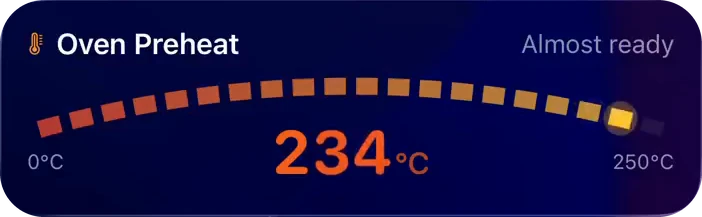
An arc with min and max, the value large with its unit; temperatures get warm and cold colors
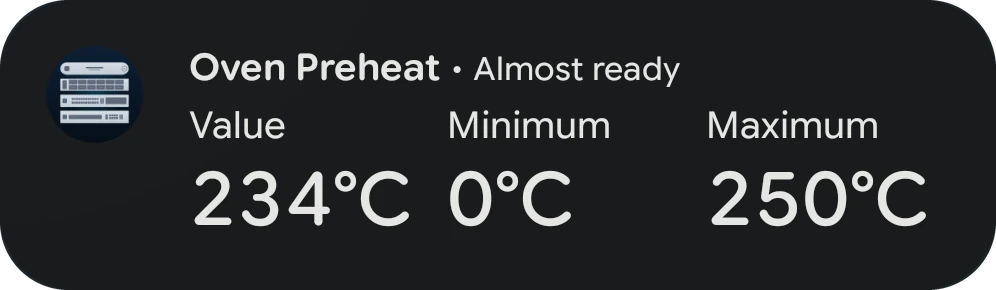
Value and state, and a bar from min_value to max_value. Android 17: a metric card with value, minimum and maximum
Glance
The value with its unit
Timeline
iPhoneLock Screen
Dynamic Island
Android 17Notification shade
Status bar chip
iOS
Android
Card
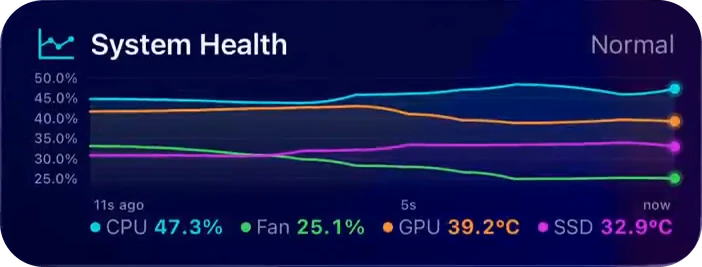
A chart of history, one line per series, with a legend when there are several
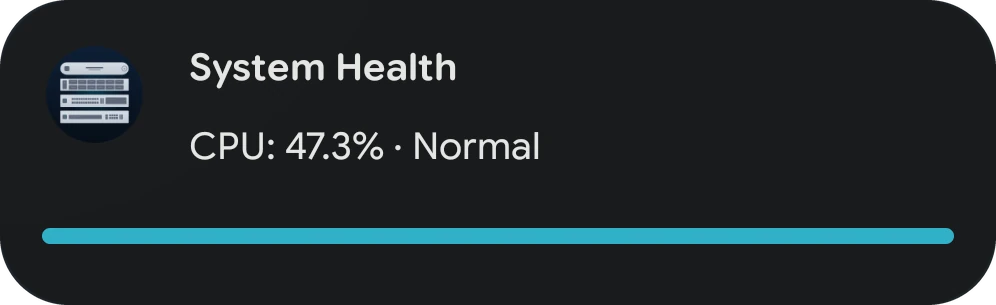
No chart. With a range (min_value and max_value, or the spread of history), the primary value on a bar with up to 4 thresholds as colored points; without one, the latest value of up to 5 series as lines
Glance
High and low with a trend arrow, and the primary value
The primary value
Buttons
None; a tap opens tap_action
Board
iPhoneLock Screen
Dynamic Island, expanded
Android 17Notification shade
Status bar chip
iOS
Android
Card
A grid of up to 4 tiles with icons, values, units, trend arrows and colors; a tile can open a link
Up to 4 tiles as "label: value" lines with trend arrows. Android 17: a metric card of the first 3 tiles, with red, orange, yellow, green, mint, blue, cyan and teal tiles shown as the system's danger, caution, safe and info tones. Tile icons and tile links are not shown
Glance
The first tile's value
Log
iPhoneLock Screen
Dynamic Island, expanded
Android 17Notification shade
Status bar chip
iOS
Android
Card
The newest lines, as many as fit (3 to 8), colored by level
Up to 8 newest lines, with "Error:" and "Warning:" in front of those levels
Glance
Line count, and the age of the newest line
Time since the newest line
Full log
View Full Log on the activity's detail screen
Media
iPhoneLock Screen
Dynamic Island, expanded
Android 17Notification shade
Status bar chip
iOS
Android
Card
Artwork, title, artist, a scrubber with elapsed and remaining time, and the playback and volume buttons listed in controls
Title and artist, artwork as the picture, a scrubber. No playback controls
Card
Artwork, title, artist, a scrubber with elapsed and remaining time, and the playback and volume buttons listed in controls
Title and artist, artwork as the picture, a scrubber, and previous, play/pause and next buttons from controls. Stop, favorite, volume and the extra buttons are not drawn: Android shows three buttons at most
Glance
Artwork, and the elapsed time while playing
Elapsed time while playing, else Paused, Stopped or Buffering
Approval
iPhoneLock Screen
Dynamic Island, expanded
Android 17Notification shade
Status bar chip
iOS
Android
Card
Question, up to 2 details, the deadline (the source once no deadline is counting down)
Question, up to 2 details and source; the deadline counts down in the header and chip
Options
2 to 4
Up to 3: Android shows at most three notification buttons, so a fourth is left off
After answering
The answer is sent in the background and the card shows which option won, or that it expired
Notification buttons
Notifications are not Live Updates, but their buttons differ between the two in the same way.
A button per duration after the actions, on iPhone, iPad and Mac with PushWard 1.20 or later; none on Apple Watch
PushWard 1.1.0 or later: snooze buttons take only the slots of the 3 your actions leave free; the detail view lists every duration. Without permission for exact alarms, the notification can come back up to about 10 minutes late, and in deep Doze up to three quarters of the snooze late, an hour at most
Best effort: a force-quit app gets nothing and Low Power Mode delays it. PushWard 1.20 or later on iPhone, iPad and Mac; Apple Watch is skipped
Every Android device is sent to, at normal priority: in Doze it waits for a maintenance window, and an app the user force-stopped gets nothing until it is opened again. Versions before 1.1.0 only sync their inbox and leave the notification in the shade