SABnzbd
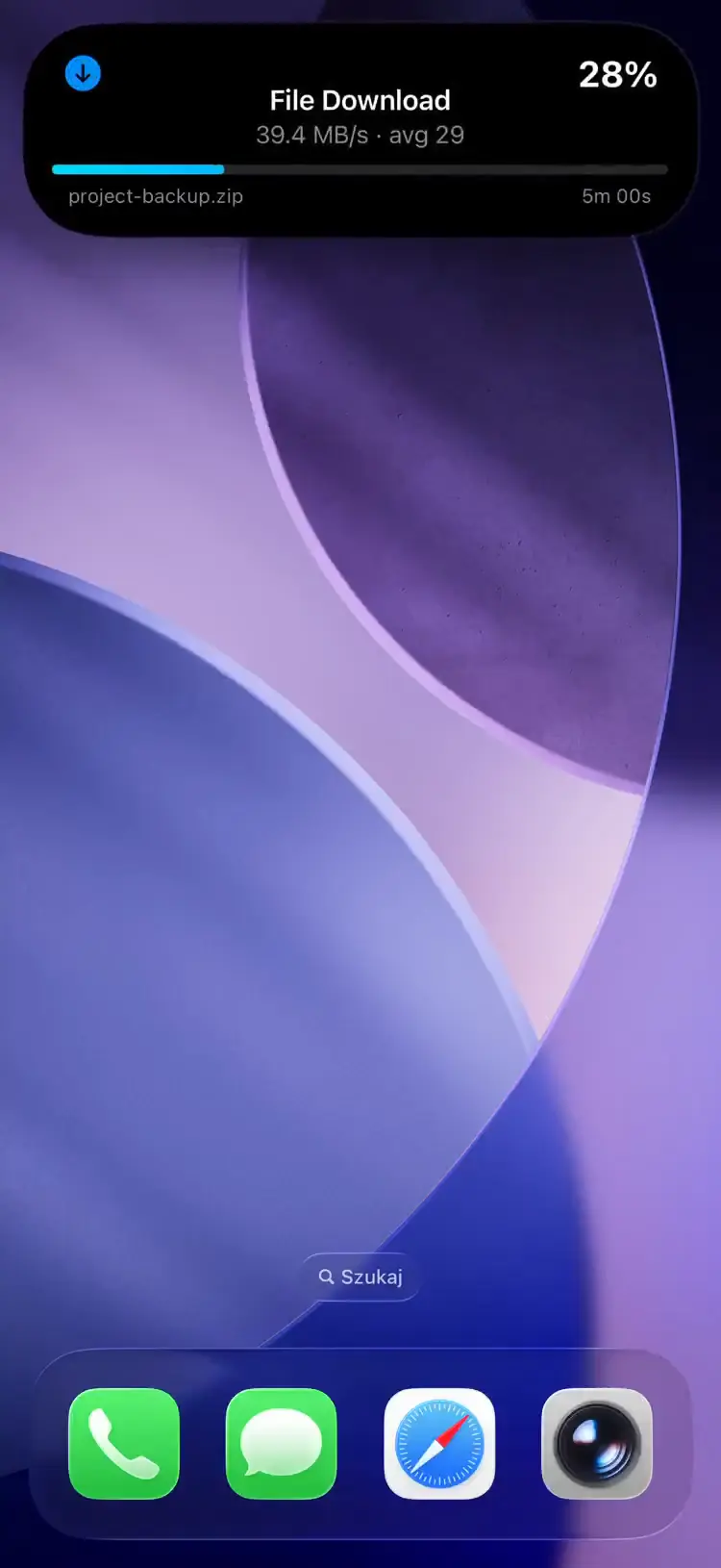
Track SABnzbd download progress as a Live Activity on your iPhone Lock Screen. See file names, speed, ETA, and post-processing phases in real-time.
How It Works
The pushward-sabnzbd bridge container runs an HTTP server that receives webhooks from SABnzbd and tracks download and post-processing progress.
- Webhook -- SABnzbd notifies the bridge when a download is added
- Download tracking -- polls SABnzbd every 5s (configurable), showing progress, speed (MB/s), ETA, and file name
- Post-processing -- tracks Verifying, Repairing, Extracting, and Moving phases
- Queue continuation -- if more downloads appear, continues tracking
- Summary -- shows total size, duration, and average speed before cleanup
Setup
1. Get Your Integration Key
Use your default integration key from the PushWard app under Settings → Integration Key, or create a scoped key for this integration.
2. Deploy the Bridge
services:
  pushward-sabnzbd:
    image: ghcr.io/mac-lucky/pushward-sabnzbd:latest
    ports:
      - "8090:8090"
    environment:
      PUSHWARD_URL: https://api.pushward.app
      PUSHWARD_API_KEY: hlk_YOUR_INTEGRATION_KEY
      PUSHWARD_SABNZBD_URL: http://sabnzbd:8080/api
      PUSHWARD_SABNZBD_API_KEY: your-sabnzbd-api-key
    restart: unless-stopped
3. Configure SABnzbd Notification Script
In SABnzbd, configure a notification script that sends a POST request to the bridge webhook:
- Go to Config > Notifications
- Under Notification Script, add a script that calls the webhook
- Enable notifications for Added NZB
Alternatively, use a curl-based script:
#!/bin/bash
curl -X POST http://pushward-sabnzbd:8090/webhook \
  -H "X-Webhook-Secret: your-secret"
The secret is defined on the bridge container (the PUSHWARD_SABNZBD_WEBHOOK_SECRET env var in the Configuration table below) and sent by this script; SABnzbd itself has no field for it.
Configuration
| Environment Variable | Description | Default |
|---|---|---|
PUSHWARD_URL | PushWard server URL | -- |
PUSHWARD_API_KEY | Integration key (hlk_ prefix) | -- |
PUSHWARD_SABNZBD_URL | SABnzbd API URL | -- |
PUSHWARD_SABNZBD_API_KEY | SABnzbd API key | -- |
PUSHWARD_SABNZBD_WEBHOOK_SECRET | Optional shared secret. When set, POST /webhook requires a matching X-Webhook-Secret header. | -- |
PUSHWARD_SERVER_ADDRESS | HTTP listen address | :8090 |
PUSHWARD_PRIORITY | Activity priority (0-10) | 1 |
PUSHWARD_POLL_INTERVAL | Poll interval during tracking (min 1s) | 5s |
PUSHWARD_CLEANUP_DELAY | Delay before cleanup after completed | 15m |
PUSHWARD_STALE_TIMEOUT | Ends activity if no updates received | 30m |
PUSHWARD_SABNZBD_TEMPLATE | Display template (generic or timeline) | generic |
Download Phases
| Phase | Live Activity | Color |
|---|---|---|
| Starting | Starting... | Blue |
| Downloading | 12.3 MB/s | Blue |
| Paused | Paused | Blue |
| Verifying | Verifying... | Orange |
| Repairing | Repairing... | Orange |
| Extracting | Extracting... | Orange |
| Complete | 1.2 GB · 45 MB/s avg · unpack 2m 3s | Green |
The bridge automatically resumes tracking if it detects active downloads on startup.
Templates
SABnzbd supports two display templates, configured via PUSHWARD_SABNZBD_TEMPLATE:
| Template | Display |
|---|---|
generic (default) | Progress bar with speed, ETA, and file name |
timeline | Sparkline chart showing download speed over time, with speed (MB/s) as the primary metric |
Activity Slug Format
Uses a fixed slug: sabnzbd. All downloads are tracked under a single activity.