Home Assistant
Uma integração HACS nativa que conecta mudanças de estado de entidades do Home Assistant a Atividades ao Vivo do PushWard no seu iPhone.
Unlike other PushWard integrations, Home Assistant uses a custom HACS component — no Docker container required.
Requirements
- Home Assistant 2025.7.0 or newer
- The PushWard app on your iPhone, or on an Android phone (Android 12 or later)
- A PushWard integration key (your default key works out of the box)
Installation
Via HACS (Recommended)
PushWard is in the default HACS store, so there is no custom repository to add.
- Open HACS in Home Assistant
- Search for "PushWard"
- Open it and click Download
- Restart Home Assistant
Manual
Copy custom_components/pushward/ from the repository into your Home Assistant's custom_components/ directory and restart.
Setup
Go to Settings > Devices & Services > Add Integration > PushWard.
| Field | Description |
|---|---|
| Integration Key | Your hlk_ integration key (the default key works) |
Use sua chave de integração padrão no app PushWard em Configurações → Chave de Integração ou crie uma chave com escopo restrito para esta integração.
Adding Entities
After setup, click "Add tracked entity" on the integration card. Each entity becomes a Live Activity.
| Field | Default | Description |
|---|---|---|
| Entity | — | Any Home Assistant entity |
| Activity Slug | Auto (ha-<entity-id>) | Unique identifier on PushWard |
| Activity Name | Entity ID | Display name shown on iPhone |
| Icon | Domain default | SF Symbol name (e.g., washer, thermometer) or MDI icon with mdi: prefix (e.g., mdi:washing-machine, mdi:thermometer) |
| Priority | 1 | 0–10 eviction priority |
| Template | generic | generic, countdown (Timer), alert, steps, gauge, timeline, board, or log |
| Start States | Domain default | Comma-separated states that start the activity |
| End States | Domain default | Comma-separated states that end the activity |
| Min. Update Interval | 5s | Cooldown between mid-activity updates |
| Progress Entity / Attribute | — | 0–100 percentage, from the tracked entity or a separate one |
| Remaining Time Entity / Attribute | — | Remaining seconds, from the tracked entity or a separate one (auto-parses timestamp, duration, H:MM:SS, or plain seconds) |
| Accent Color | Blue | Color for the Live Activity accent |
Each value (remaining time, progress, subtitle, gauge value, current step, fired-at) can read from a separate entity or attribute, so an appliance with separate state and time-remaining sensors needs no template helper.
The board and log templates compose several entities into one activity. A board shows 1–4 tiles, each reading from a separate entity; a log shows a
newest-first list of up to 20 lines, with optional extra columns (an attribute or another entity's value) and a
per-line severity level.
Domain Defaults
Start/end states and icons are pre-filled based on the entity's domain. The default icons are Material Design (mdi:) names, which PushWard accepts alongside SF Symbols:
| Domain | Icon | Start States | End States |
|---|---|---|---|
binary_sensor | mdi:toggle-switch-variant | on | off |
switch | mdi:toggle-switch-variant | on | off |
climate | mdi:thermostat | heating, cooling | off, idle |
vacuum | mdi:robot-vacuum | cleaning | docked, idle |
media_player | mdi:cast | playing | off, idle, paused |
lock | mdi:lock | unlocked | locked |
cover | mdi:window-open | opening, closing | open, closed |
timer | mdi:timer-outline | active | idle, paused |
sensor | mdi:eye | manual | manual |
Activity Lifecycle
Start
The integration listens for state changes on the entities you configure. When an entity enters a start state (e.g., a washer turns on), it creates the activity on PushWard (if it doesn't exist) and a Live Activity appears on your Lock Screen via push-to-start.
Updates
While active, any state or attribute change — on the tracked entity or any configured companion entity — triggers a throttled update. Rapid changes are coalesced — only the latest state is sent when the cooldown expires. The integration is entirely event-driven, so the update interval is a rate-limiter, not a polling period.
End
When the entity reaches an end state, a two-phase dismissal runs:
- A "Complete" update is sent (green accent, checkmark icon). The progress bar keeps its last value rather than jumping to 100% -- only the steps and gauge templates fill the bar to its maximum.
- After 5 seconds, the activity is ended and dismissed from the Lock Screen
If the entity starts again during the 5-second window, the end is cancelled.
HA Restart
On Home Assistant restart, any tracked entity already in a start state automatically resumes its Live Activity.
Notifications, Widgets & Email
Beyond mirroring entities to Live Activities, the integration exposes services for the rest of the PushWard surface. Each needs the matching permission on your integration key — your default key has all of them:
- iOS widgets — add a tracked widget sub-entry (event- or
poll-triggered, 10–3600 s) to push Home Screen widgets in the
value,progress,gauge,status, andstat_listtemplates, or callpushward.widget_refreshto force a refresh andpushward.delete_widgetto remove one. Needswidgetsatwrite. - Push notifications — the
pushward.send_notificationservice sends a regular (non-Live-Activity) push with title, body, level (includingcritical), actions, and rich media. It can also send the notification later or on a repeating schedule, and its buttons can record an answer for the automation to act on. Needsnotificationsatsend, orschedulefor scheduled ones. For a plain title and body there is also the notify entity (0.55.0 and later). - Transactional email — the
pushward.send_emailservice delivers email to a verified recipient of your account. Needsemailsatsend.
For driving an activity straight from an automation (rather than tracking an entity), the create, update, end,
and delete services are all available. Update actions are template-specific — pushward.update_activity_generic, …_steps, …_gauge, and so on — so each
action's form only shows the fields that template uses.
Notify entity
Integration 0.55.0 and later give each entry a notify entity on the same device, named after the entry: notify.pushward_push_notification for an entry titled PushWard. It takes notify.send_message, and it can sit in a notify group with other notify entities. The Companion
app's notify.mobile_app_* is a legacy notify service, not an entity, so it cannot join the same
group.
- action: notify.send_message
  target:
    entity_id: notify.pushward_push_notification
  data:
    title: Washer
    message: The washer is done.
The message goes out like a pushward.send_notification with only a title and body, so an encryption key seals it (a message too long for the sealed envelope is shortened to
fit) and a used-up notification quota refuses it. notify.send_message does not always carry a title;
without one, the title is your Home Assistant's name from Settings > System > General ("Home" unless you changed it), so the phone shows which home sent it. For levels, links, buttons or scheduling,
use pushward.send_notification.
Links into Home Assistant
From 0.55.0, a tap or button url that starts with a single /, like /lovelace/kitchen or /api/webhook/close-valve, is a path on your Home Assistant.
Before the call goes out it becomes a full URL on Home Assistant's external URL (Settings > System
> Network, Internet), or on the Home Assistant Cloud URL when no external URL is set. The internal
URL is never used, since the phone may be away from home when someone taps. Without either, the action fails
and says so. Full URLs (https://..., homeassistant://...) are sent as they are.
That covers url and the action urls of send_notification, and url, secondary_url, tap_action, url_action, secondary_url_action, board tiles' url_action, media controls and
approval options on the activity update actions. media, icon_url, image_url and callback_url still take full URLs only. To open a dashboard in the
Companion app rather than the browser, keep using homeassistant://navigate/lovelace/kitchen.
Silent buttons need https. Media controls, approval options, and every action or notification button without foreground: true are requests the phone sends in the background; iOS refuses cleartext for them and
Android drops the button. With an http:// external URL such a path goes out on the Cloud URL
instead, and without Home Assistant Cloud the action fails. Plain url and secondary_url strings and foreground: true actions open in the browser, so they may
stay on http. A dashboard path on an action without foreground: true is fetched in the background,
not opened.
A path to a webhook makes a silent button. Give it method: POST (media controls and approval
options already default to it), because a webhook trigger takes only POST and PUT unless you change allowed_methods. The request arrives through the external or Cloud URL, so turn off Only accessible from the local network on the trigger. With the default local_only: true, Home Assistant answers 200, logs "Received remote request for local webhook",
and the automation never runs.
- action: pushward.send_notification
  data:
    title: Water leak
    body: Kitchen sensor is wet
    actions:
      - id: close
        title: Close valve
        url: /api/webhook/close-valve
        method: POST

# the automation behind it
- triggers:
    - trigger: webhook
      webhook_id: close-valve
      allowed_methods: [POST]
      local_only: false
  actions:
    - action: valve.close_valve
      target:
        entity_id: valve.main_water
Timers: counting up, goals and pausing
Integration 0.53.0 and later drive the timer template (countdown) in both directions. pushward.update_activity_countdown takes four fields on
top of end_date, duration, start_date, warning_threshold, alarm and snooze_seconds:
| Field | Description |
|---|---|
direction | down (the default) counts down to the end; up counts up from start_date. Leave start_date out to start now, or give a past timestamp for something that began earlier |
goal | Up only: a target in seconds or a duration string such as "2h". The ruler fills toward it; past it the clock turns orange and keeps counting as overtime. The goal stays on the slug, so a timer restarted on the same slug still has the last run's target: send goal: null to remove it (an empty string is refused) |
show_ruler | false hides the ruler in either direction. On by default |
paused | true freezes the clock and false resumes it, in either direction. Sending the state the timer is already in changes nothing, so an automation can send it on every update |
An up timer has no end, so the action refuses end_date, duration, warning_threshold, alarm, snooze_seconds and completion_message next to direction: up, and a goal next to direction: down; goal: null, the clear, passes in either direction. A call without direction keeps the stored one, which only the server knows, so a wrong pairing there fails with the
server's message instead. Leave the message out of pushward.end_activity for an up timer as well.
- action: pushward.update_activity_countdown
  data:
    slug: kid-nap
    state: ongoing
    state_text: Asleep
    direction: up
    goal: 2h
pushward.pause_timer pauses a timer by slug, or resumes it with paused: false (paused defaults to true). Counting up, the paused time is left out of the clock, so the
start time on the card stays right; counting down, the end moves on by the length of the pause. While a count-down
is paused, leave end_date and duration out of its updates: either one starts a new window
and clears the pause (see Pausing).
- action: pushward.pause_timer
  data:
    slug: kid-nap
    paused: false
The action sends only the switch and the template stays what it is. An ended timer ignores it, so the time it stopped at stays put.
On any other template the server refuses the pause and the action fails with its message. A timer that the
5-activity limit has moved off the phone fails too, with invalid activity state: "preempted": send pushward.update_activity_countdown with state: ongoing to ask for it back, with paused in the same call if you want it paused.
On iPhone, counting up and pausing need PushWard 1.19.0 or later: older versions show an up timer as finished and keep counting down through a pause.
Scheduled and repeating notifications
Add send_at to pushward.send_notification and PushWard holds the notification and
sends it at that time, at most 365 days ahead. A time picked in the action editor has no UTC offset, so it is
read in Home Assistant's time zone. The send happens on PushWard's side: Home Assistant does not have to be
running when it goes out. For reminders from the due dates on a to-do list, with no script to write, use a tracked to-do list.
To repeat it, add a recurrence object:
| Field | Required | Description |
|---|---|---|
cron | Yes | A 5-field cron expression (minute, hour, day of month, month, day of week) or one of @hourly, @daily, @weekly, @monthly, @yearly. Sends must be at least 15 minutes apart. |
timezone | No | IANA time zone name, such as Europe/Warsaw. Defaults to the time zone configured in Home
Assistant, so 08:00 means 08:00 at home, across daylight saving changes too. |
until | No | Date and time of the last allowed send. |
count | No | Number of sends, 1-1000. |
- Set
untilorcount, not both. With neither, the series runs until you cancel it. - With a
recurrence,send_atis optional and marks where the series starts. Without it, the first send is the next time the cron expression matches, which must be within 365 days. - A repeating notification keeps one id for the whole series and takes one of the 25 slots an account has for pending scheduled notifications.
- Scheduling is free. Each send counts toward your notification quota when it goes out.
Set response_variable on the action to get the id back. A scheduled or repeating send returns scheduled_notification_id, send_at (the next send) and recurrence; one
sent right away returns notification_id and answerable. The response only lives
for that run, so the example below keeps the id in an input_text helper for the script that
stops the reminder.
script:
  start_school_run_reminder:
    alias: Start the school run reminder
    sequence:
      - action: pushward.send_notification
        data:
          title: School run in 15 minutes
          body: Shoes, bags, lunch boxes.
          source: home
          recurrence:
            cron: "0 8 * * 1-5"
        response_variable: reminder
      - action: input_text.set_value
        target:
          entity_id: input_text.school_run_reminder_id
        data:
          value: "{{ reminder.scheduled_notification_id }}"

  stop_school_run_reminder:
    alias: Stop the school run reminder
    sequence:
      - action: pushward.cancel_scheduled_notification
        data:
          scheduled_notification_id: "{{ states('input_text.school_run_reminder_id') | int }}"
pushward.cancel_scheduled_notification cancels the schedule, and the PushWard app shows it as
canceled for 24 hours. For a repeating one that stops the whole series, even while one of its sends is going
out: that send arrives only if it had already gone out, and nothing is sent after it. An id that no longer exists is ignored, so running the
stop script twice does no harm.
pushward.list_scheduled_notifications returns scheduled_notifications, a list. status picks which ones: scheduled (the default: still pending, including one being
sent right now), sent and failed (both kept for 7 days), canceled (kept
for 24 hours) or all. Repeating items also carry recurrence, occurrence (sends so far) and last_sent_at. It only sees
the notifications scheduled with this integration's key.
Statuses, failure reasons and more cron examples are on the scheduled notifications page.
Notification answers
Give a notification action no url and PushWard records the tap itself: which button was chosen,
and when. Add text_input: true to such an action and the person can type a reply, which is
recorded with it (text_input_placeholder and text_input_button_title label the
field). An action with foreground: true and no url only opens the app and is never recorded.
When at least one action will be recorded, the send_notification response has answerable: true.
pushward.get_notification_answer reads the answer for a notification_id. It waits
up to timeout seconds (default 300, at most 86400) and returns as soon as the answer lands, so
the automation pauses on that step and the person has that long to tap. timeout: 0 reads once
without waiting.
automation:
  - alias: Ask before closing the garage door
    triggers:
      - trigger: state
        entity_id: cover.garage_door
        to: open
        for: "00:30:00"
    actions:
      - action: pushward.send_notification
        data:
          title: Garage door open
          body: It has been open for 30 minutes. Close it?
          level: time-sensitive
          actions:
            - id: close
              title: Close
              icon: door.garage.closed
            - id: ignore
              title: Ignore
              destructive: true
        response_variable: sent
      - action: pushward.get_notification_answer
        data:
          notification_id: "{{ sent.notification_id }}"
          timeout: 3600
        response_variable: answer
      - choose:
          - conditions:
              - condition: template
                value_template: "{{ answer.action_id == 'close' }}"
            sequence:
              - action: cover.close_cover
                target:
                  entity_id: cover.garage_door
Ignore, and no answer within the hour, both leave the door as it is. The response carries these fields:
| Field | Description |
|---|---|
answered | true once someone has answered. |
status | pending or answered. |
action_id | The id of the action that was tapped. |
text | The typed reply, for a text_input action. |
answered_at | When the answer was recorded. |
reason | Only when the timeout ran out first. The response then has answered: false and status: pending. |
- The first answer wins. Once one device has answered, later taps on any device change nothing.
- Answers are kept for 30 days. An automation that should not sit and wait can store the
notification_idand read the answer later withtimeout: 0. - A Home Assistant restart stops a waiting automation like any other. The answer stays on PushWard, so a
later read with
timeout: 0still finds it.
The pushward_notification_action event
Integration 0.55.0 and later fire pushward_notification_action on the event bus for each answer to
a notification the entry's key sent: a tapped action without a url, a typed reply, an Acknowledge
tap, a to-do reminder's Done. It works like the Companion app's mobile_app_notification_action, so
an automation that waits for that event ports over by changing the event type and the send action.
| Event data | Companion app | Description |
|---|---|---|
action | action | The id of the tapped action (pw_ack for the Acknowledge button PushWard adds) |
reply_text | reply_text | What was typed into a text_input action, else null |
action_id | Same as action, under PushWard's own name | |
notification_id | The notification_id from the send_notification response | |
collapse_id | tag | The collapse_id it was sent with, else null |
thread_id | group | The thread_id it was sent with, else null |
answered_at | When it was answered (RFC 3339) | |
late | true when it was answered more than 2 minutes before the event fired, because Home Assistant read it after a restart or an outage | |
config_entry_id | The PushWard entry whose key sent it |
The event carries no action title, nor the notification's title and body; with end-to-end encryption on, PushWard never has them in the clear. The Companion app pattern, with a per-run action id so two runs of the same script don't answer each other:
- variables:
    action_close: "{{ 'CLOSE_' ~ context.id }}"
- action: pushward.send_notification
  data:
    title: "Garage door is open"
    body: "Close it?"
    actions:
      - id: "{{ action_close }}"
        title: Close
- wait_for_trigger:
    - trigger: event
      event_type: pushward_notification_action
      event_data:
        action: "{{ action_close }}"
  timeout: "00:30:00"
  continue_on_timeout: false
- action: cover.close_cover
  target:
    entity_id: cover.garage_door
Matching on notification_id: "{{ sent.notification_id }}" from a response_variable works too. A text reply arrives in {{ wait.trigger.event.data.reply_text }}.
Home Assistant reads the answers from the answer stream,
with one long-poll per PushWard entry, and only while something can still be answered: a notification sent in
the last 7 days with no answer yet (a scheduled one counts from when it goes out). With nothing like that, no
connection is held. The stream's position is kept in .storage, so an answer given while Home
Assistant was restarting fires once it is back, as long as that notification is still waited for and the answer
is less than an hour old. An answer read late to anything else (more than 7 days after the send, or while
nothing was waiting) fires only if it was given in the last 10 minutes. Older answers are skipped, so a tap from
yesterday never runs an automation at a random moment. For an automation that must act only on a tap as it
happens, add a condition on late:
- condition: template
  value_template: "{{ not wait.trigger.event.data.late }}"
pushward.get_notification_answer reads answers on its own and is not affected.
How recording works, and its limits, is covered on the notification answers page.
Esta seção descreve um recurso de uma atualização do app que está em análise na App Store. Ele é desbloqueado aqui automaticamente assim que a atualização for lançada.
Acknowledged notifications
For alerts that must not be missed (a leak, an alarm, a door left open), integration 0.51.0 and later take acknowledge on pushward.send_notification: PushWard re-sends the push until someone
answers it on one of their devices, or until it expires. acknowledge: true repeats every minute
for an hour; an object sets repeat_seconds (30-3600), expire_seconds (60-10800) and action_title. Any tap on an action without a url that does not open the app
(foreground off) counts, and when the notification has none, PushWard adds an Acknowledge
button. An acknowledged send without a collapse_id gets a random one, so if Home Assistant
retries the request, the retry replaces the first alert instead of repeating next to it. Repeats do not count toward your quota, and at most 25 can be
repeating at once.
- action: pushward.send_notification
  data:
    title: "Water leak"
    body: "Sensor under the kitchen sink"
    level: time-sensitive
    acknowledge:
      repeat_seconds: 120
      action_title: "On it"
    tags: [leak]
  response_variable: sent
With a response requested, the service returns the receipt next to notification_id. tags and callback_url need acknowledge. callback_url gets a
signed POST when the notification is acknowledged or expires, and it has to be a public https URL:
PushWard cannot reach homeassistant:8123 or anything else on your LAN, so for a webhook trigger
use the Home Assistant Cloud URL.
pushward.cancel_notifications stops the repeats, for one notification_id or for every
active notification with a tag. It reaches only notifications sent with this integration's key,
and no callback is sent for them.
- alias: Leak cleared, stop nagging
  triggers:
    - trigger: state
      entity_id: binary_sensor.kitchen_leak
      to: "off"
  actions:
    - action: pushward.cancel_notifications
      data:
        tag: leak
Receipts, callbacks and their signature are covered on the acknowledged alerts page.
End-to-end encryption
Integration 0.51.0 and later can seal the title, subtitle, body and url of every notification they send, so PushWard only stores and forwards an envelope it cannot open. Your devices open it with the same key.
- In the PushWard app (1.17.0 or later), open Settings > End-to-End Encryption, create a key and copy it.
- In Home Assistant, open Settings > Devices & Services > PushWard > Configure and paste it. The form shows its Key ID, which should match the one in the app.
The form never shows the stored key: leaving the field empty keeps the key in use, pasting another one
replaces it, and Remove the encryption key turns encryption off. An hlk_ integration key pasted there is refused. An entry that sends with an organization's integration key takes the organization's encryption key, not your
own: an admin creates it and hands it out, and members add it in PushWard 1.18.0 or later (see Organizations). While PushWard has encryption
for organizations turned off, the entry's action calls fail and its to-do reminders raise a repair issue in
Home Assistant instead of failing quietly.
pushward.send_notificationand to-do reminders are sealed whether they go out now or are scheduled. Notifications scheduled before you set or change the key go out the way they were queued.- The server cannot check sealed text, so the integration does: an empty title or body, a blocked url scheme, or text too long to encrypt (about 2.2 KB for title, subtitle, body and url together) fails the action call. To-do reminders are cut to fit instead, the description first and then the title.
- Diagnostics leave the key out and show only its Key ID.
Everything else, Live Activities and widgets included, stays readable to PushWard. What exactly is covered, and what a device without the key shows, is on the end-to-end encryption page.
Esta seção descreve um recurso das atualizações do app que estão em análise na App Store e no Google Play. Ele é desbloqueado aqui automaticamente assim que qualquer uma das atualizações for lançada.
Snooze
Integration 0.55.0 and later take snooze on pushward.send_notification: snooze buttons
after your actions, one per duration in minutes. snooze: [15, 60] gives a 15-minute and a 1-hour
button. A tap hides the notification and shows it again on that device when the time is up. Nothing is sent to
PushWard or Home Assistant, so a snooze is not an answer and fires no event.
- action: pushward.send_notification
  data:
    title: Washer
    body: The wash is done.
    collapse_id: washer
    snooze: [15, 60]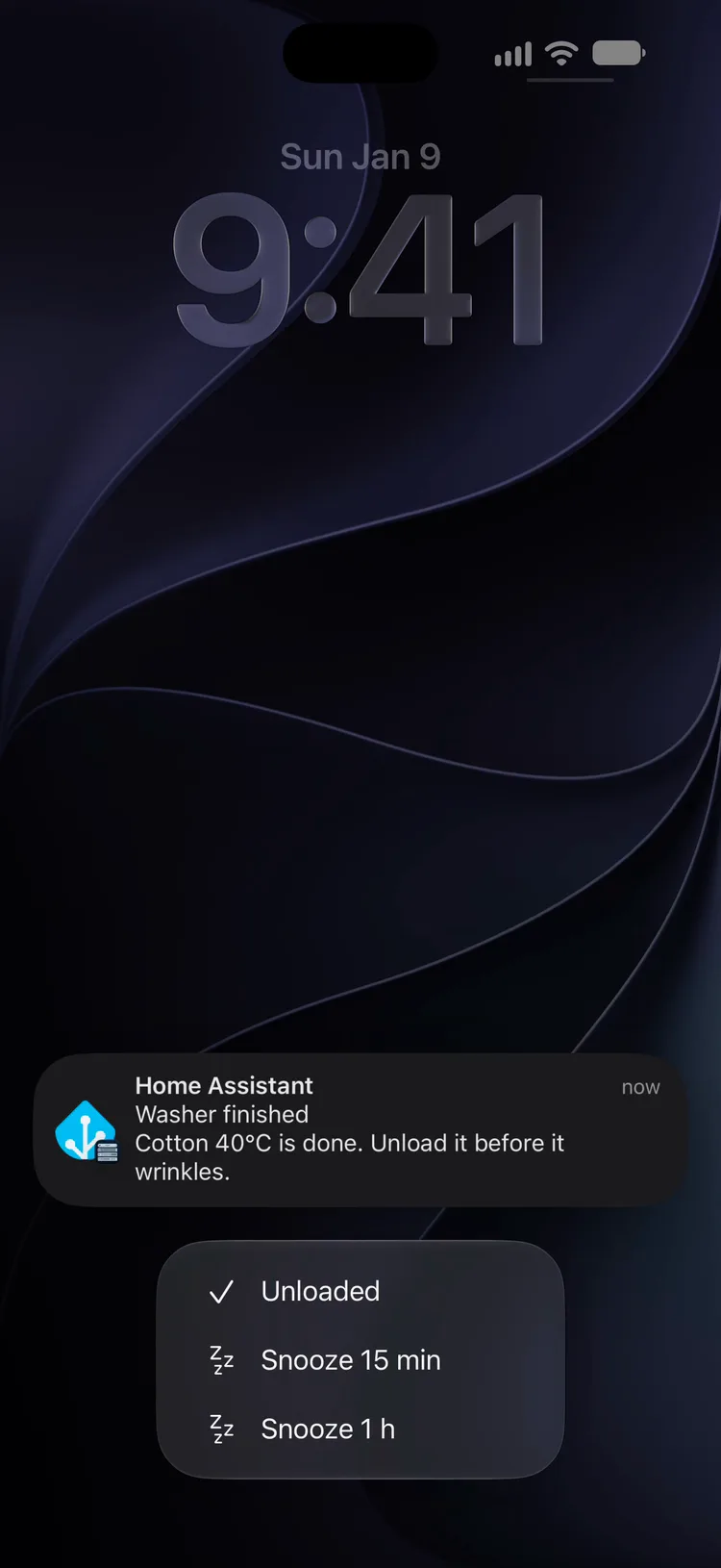
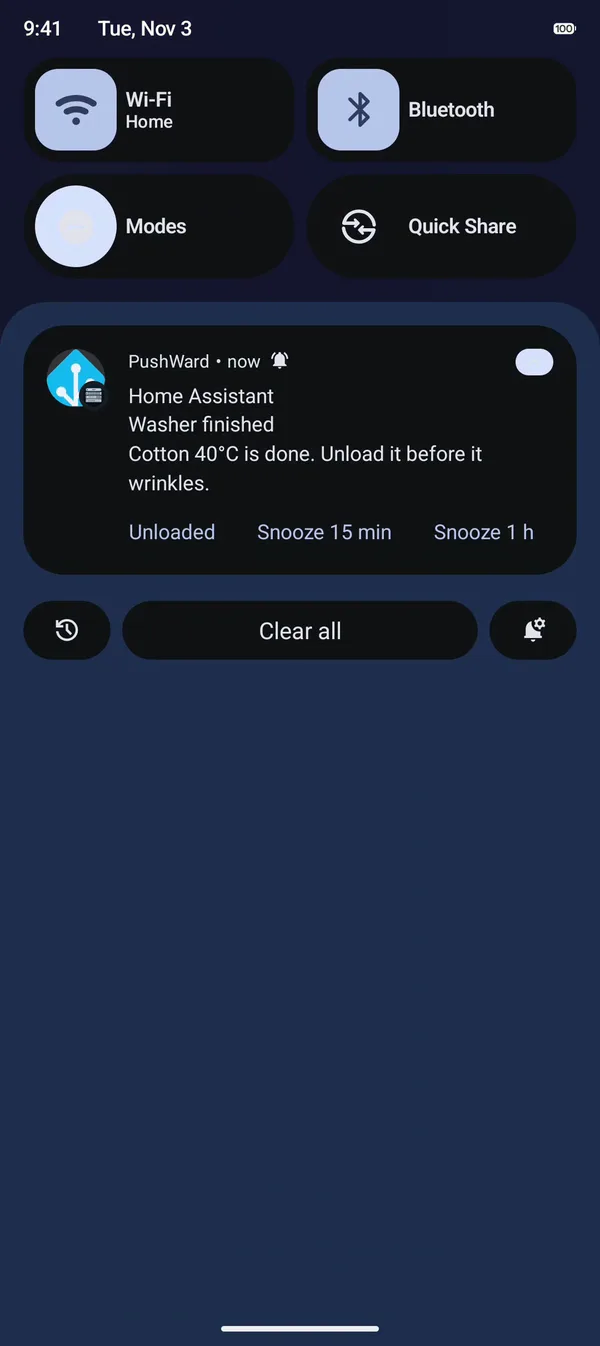
On Android the snooze buttons sit on the alert in the shade; a tap hides it, and it comes back on the same device when the time is up.
- 1-3 durations, each 1-1440 minutes and all different.
- It does not work with
acknowledge(an acknowledged notification repeats anyway), and actions plus snooze buttons are at most 10. - Scheduled and repeating sends keep it.
- Apple devices need PushWard 1.20 or later for the snooze buttons (older versions show none), and the Apple Watch gets none.
- PushWard 1.1.0 or later on Android: the shade shows at most 3 buttons, your actions first, and snooze takes only the slots they leave.
The rules in full are under Snooze.
Taking notifications back
pushward.clear_notification (0.55.0 and later) takes back the notifications sent with a collapse_id, like the Companion app's clear_notification message with collapse_id in place of tag. Every Android device the account's notifications reach,
and every iPhone, iPad and Mac among them with PushWard 1.20 or later, gets a silent push and removes them from
the notification shade or Notification Center (Android from PushWard 1.1.0; older versions only sync the inbox);
in the PushWard app they are marked read, not deleted. Acknowledged notifications of the account or organization with that collapse_id also stop repeating, whichever integration key sent them; with an organization key
limited to some groups or tags, only the ones that key sent.
- alias: Garage closed, take the alert back
  triggers:
    - trigger: state
      entity_id: cover.garage_door
      to: closed
  actions:
    - action: pushward.clear_notification
      data:
        collapse_id: garage-door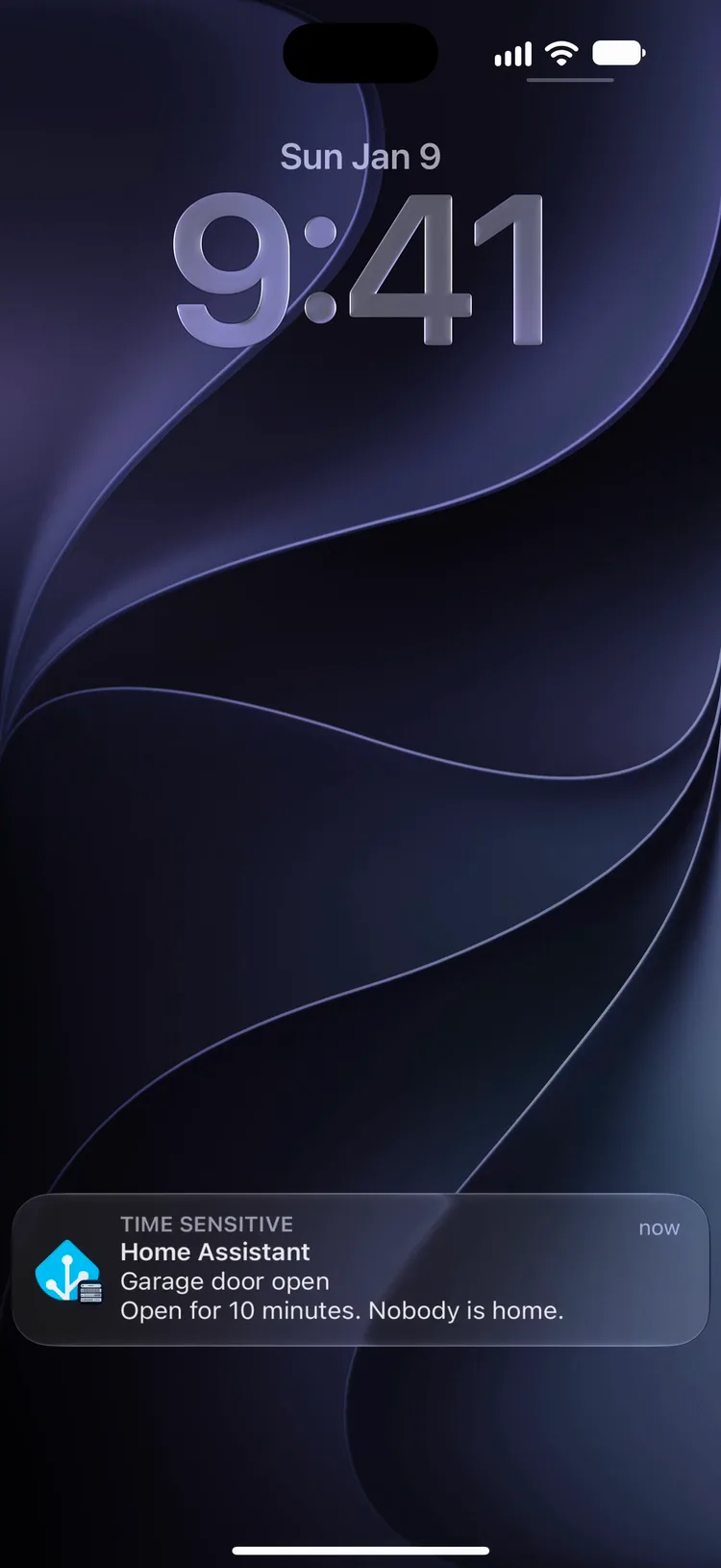
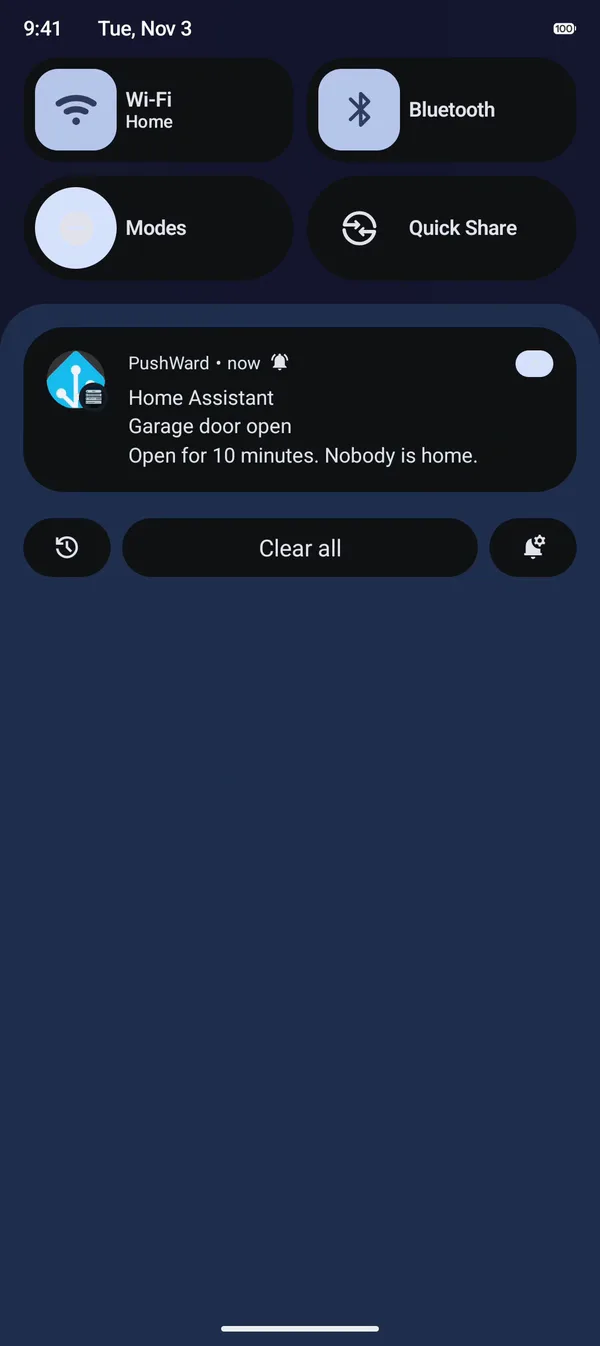
On Android the alert leaves the shade when the silent push arrives, and the PushWard inbox keeps it, marked read.
It takes one field, collapse_id, up to 64 characters, and goes to every account unless you name one
with config_entry_id. The optional response is { devices: <count> },
the number of devices the retraction was sent to. It is best effort: iOS does not deliver silent pushes to an
app that was force-quit, Low Power Mode can hold them back, Apple devices need PushWard 1.20 or later, and the
Apple Watch is skipped. Android gets it at normal priority, so in Doze it waits for a maintenance window, and an
app the user force-stopped gets nothing until it is opened again. PushWard allows 10 a minute per account or organization, counted across all of its keys,
with at most 5 in a quick burst. More on the retract notifications page.
To-do reminders
A tracked to-do list turns the due dates on a Home Assistant to-do list into PushWard reminders. Add one under Settings > Devices & Services > PushWard > Add tracked to-do list and pick any todo entity, such as a Local To-do list. Every open item with a due date gets a scheduled notification: the item's title is the push title, and its
description is the body (the list name when it has no description).
| Option | Default | Description |
|---|---|---|
| Remind before due | 0 min | Send the reminder this long before the due time, up to 7 days. |
| Time for date-only items | 09:00 | An item with a due date but no time is reminded at this time on that day. |
| Notification level | active | passive, active or time-sensitive. |
| Done button | On | Adds a Done button to the push. Tapping it completes the item in Home Assistant. |
| Take back reminders when done | Off | Removes a reminder that already went out from your devices once its item is completed or deleted (integration 0.56.0 and later). |
| Most reminders scheduled at once | 10 | 1-25. Only the soonest items are scheduled; the rest follow as those go out. |
Say the list has a 30 minute lead and you add "Dentist", due tomorrow at 15:00. PushWard schedules a push titled Dentist for 14:30 tomorrow, with a Done button. Tap Done and the item is ticked off in Home Assistant; move the appointment to 16:00 and the reminder moves to 15:30.
- Adding or editing an item schedules or replaces its reminder right away. Completing or deleting it cancels the reminder.
- PushWard sends the push itself, so it arrives even if Home Assistant is offline at that time.
- An item due more than 365 days out is scheduled once it comes within range. An item whose reminder time has already passed gets its reminder within a minute, unless it is more than 90 minutes past due; then it gets none.
- If you stop a reminder in the PushWard app, the item stays open and gets no new reminder until you change its due date or time. Renaming an item whose reminder already went out does not send it again either.
- After a reminder goes out, the item stays open until you tick it off. With the Done button, Home Assistant watches for the tap for 24 hours.
- With Take back reminders when done on, a reminder that already went out is taken back once
its item is completed (in Home Assistant or with the Done button) or deleted, the way
pushward.clear_notificationdoes it, from every device of the account. That is best effort: Apple Watch keeps the reminder, and so does PushWard on iPhone, iPad or Mac before 1.20; Android removes it from PushWard 1.1.0. Home Assistant forgets a sent reminder 90 minutes after the item's due time, or 24 hours after the send with the Done button on if that is later, so an item completed after that keeps its reminder. Moving an item to a later due time does not take back the reminder that went out for the earlier one, so if you complete the item before its new reminder goes out, the earlier one stays. - From integration 0.56.1, an item completed around its reminder time is taken back only once PushWard reports that reminder sent, so the retract almost always reaches your devices after the reminder (PushWard reports it sent just before it pushes it). If PushWard has not sent it yet, Home Assistant cancels it and looks again 10 seconds later, taking it back only if it went out in the meantime; each look counts as one of the 3 tries below. Unticking an item whose reminder was taken back, or canceled this way, sends the reminder again within a minute, unless the item is more than 90 minutes past due. Integration 0.56.0 takes the reminder back 10 seconds after its time without asking PushWard, so one that PushWard sends later stays, and an unticked item gets no new reminder.
- PushWard allows 10 retracts a minute per account, 5 at once, and Home Assistant keeps under that across all its lists. It stops at the first retract that fails and tries each reminder up to 3 times; the rest wait for the next sync, at the latest an hour later.
- Every pending reminder takes one of the 25 slots the account has for scheduled notifications, shared with anything else that schedules them. Leave room below 25 if your automations schedule notifications too.
- Which reminder belongs to which item is kept in Home Assistant's storage, not in the item, so notes synced to other apps (Apple Reminders through the Home Assistant app's Reminders Sync, for example) stay clean.
- Removing the list, or the whole integration, cancels its pending reminders.
Account Sensors
The integration also creates five sensors that track your PushWard usage against your plan, refreshed about every 15 minutes:
sensor.pushward_notifications_usedsensor.pushward_live_activity_updates_usedsensor.pushward_widget_updates_usedsensor.pushward_emails_usedsensor.pushward_subscription_tier—freeorpremium
Example: Washing Machine
Track a washing machine using a sensor entity with a progress attribute:
| Setting | Value |
|---|---|
| Entity | sensor.washing_machine_status |
| Icon | washer (or mdi:washing-machine) |
| Template | generic |
| Start States | washing, rinsing, spinning |
| End States | off, complete, idle |
| Progress Attribute | progress_percent |
| Accent Color | Blue |