Widgets
Push-gestuurde widgets voor het beginscherm, het toegangsscherm en Stand-by van iOS en voor het startscherm van Android. Declareer een widget één keer, werk de inhoud bij met een PATCH, en elke geplaatste kopie vernieuwt vanzelf.
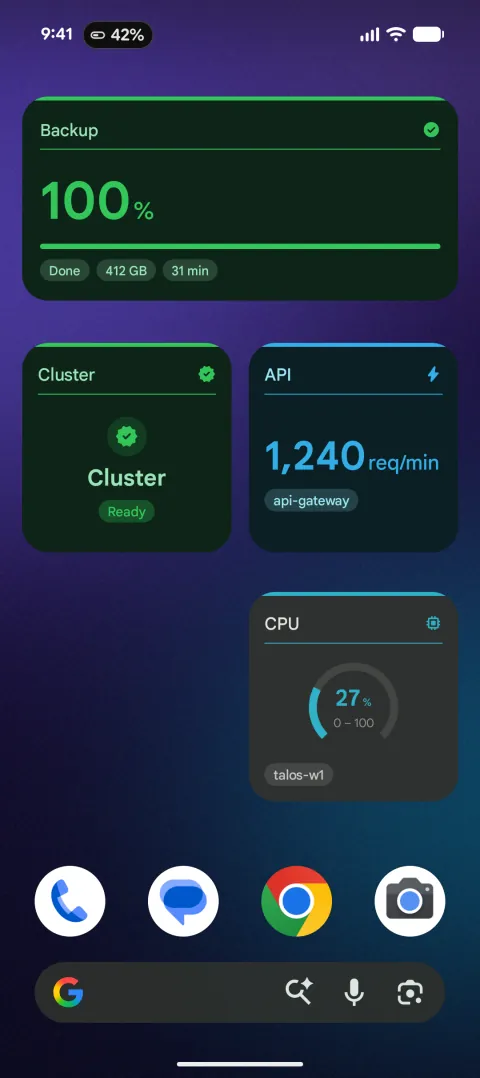
On Android, widgets go on the home screen: long-press it, choose Widgets and add PushWard, then pick which of your widgets it shows. It draws the small, medium or large layout for the space it gets, and long-pressing it again picks another widget.
Widgets require iOS 26 or later. On older versions the iOS app hides the widget management screen and your widgets remain dormant — the server keeps the content current so they render correctly once the user upgrades.
Widgets work on every Android version the app runs on, Android 12 or later.
Widgets are persistent — once the user pins one to their Home Screen, Lock Screen, or StandByhome screen, it stays there until they remove it. Use a widget for ambient state that should always be glanceable (a sensor reading, a server health indicator, a daily counter). For something that is currently happening and has a known end — a download, a timer, a print — reach for a Live ActivityLive Update instead.
Templates
Each template is tuned for a different shape of data. Tap a card for that template's field list, worked example, and behavior notes; the shared content fields they all accept live in the API reference.On Android the same templates draw in the app's own home screen layout, like the widgets above; the cards show the iPhone ones.
Preview any of them on the playground.
Dit gedeelte beschrijft een functie in een app-update die door de App Store wordt beoordeeld. Zodra de update live is, wordt het hier automatisch ontgrendeld.
Styles
Every template draws in one of three looks. Standard is the default: the earlier layout reworked so each text appears once and the small size keeps the range, trend or rows. Bold shows the same data another way, such as a gauge read off a ruler or a schedule as a list of what changes next. Classic is the design widgets had before the styles, without the colored strip along the top. Every template offers all three.
The look can differ from size to size: one widget can be Bold on the Home Screen and Classic on the Lock Screen. For each size it draws, the widget takes the first of these that is set:
- The look your integration sends for that size in
style_by_size. - The look your integration sends for every size in
style. - The look the person who placed the widget picks in the app for that size, then the one they pick for every size.
- Standard.
What your integration sends always wins on the sizes it covers: the app still previews the other looks there, says the look is set by the API, and keeps drawing yours. Sizes you leave out stay the user's to pick. On Android, lock_screen is not used, since the app has no Lock Screen widgets.
Row Density
A stat_list also has a Row Density, set the same way per size: density_by_size, then density, then the app user's pick for the size and for every size, then Auto. It sets how tightly the rows pack, and each look applies it its own way:
- Auto is each look's own layout. Standard puts its rows two to a line only where one column would leave a row out; Bold sets its tiles up to two across; Classic pairs rows once there are more than three, always on the medium size and on the small size (when it has no buttons) only when every value is three characters or less.
- Compact fits more rows. Standard puts them two to a line, once there are three or more, only where every value stays whole: with a longer value they go one to a line and the rows that do not fit are counted; Bold sets three or more tiles three across in smaller type where each value fits; Classic sets its rows tighter and smaller, two to a line only where each keeps its whole value and at least the first three letters of its label.
- Comfortable keeps one full-width row (in Bold, one tile) per line, so fewer rows show.
Rows that do not fit are left out from the end and counted, as "+2" in the header or a last "+2 more" line or tile; Classic at Auto and Comfortable shows its rows as the earlier design did. Beside action buttons, at every density, Classic keeps the rows that fit above the buttons and counts the rest. On the Lock Screen the rectangle draws the same in every look: with more than three rows it puts them two to a line, up to six, at Auto when every value is three characters or less and always at Compact; otherwise it shows the first three.
Leave these fields out unless your integration has a reason to fix the look. The fields, the size keys and how to clear them are in the API reference; the playground previews every size.
Every template in its styles
The medium size of each template in each style, as the iOS app draws it from the same sample content.
value


progress


status


gauge


stat_list


trend


countdown


battery


schedule


flow


heatmap


How it works
- Your integration calls
POST /widgetsto declare a widget byslug, with atemplateand initialcontent. - The user opens the widget picker on their device and selects your slug for any system widget family they want — small, medium, large, accessory-rectangular, accessory-circular, or accessory-inline. The same slug can appear in multiple slots.The user long-presses the home screen, adds the PushWard widget and picks your slug. The widget draws the small, medium or large layout for the space it is given.
- Your integration calls
PATCH /widgets/{slug}whenever the underlying value changes. The server merges (RFC 7396) and pushes a thin update; the iOS widget extension reloads its timelinethe Android app fetches the new content and redraws the widget. - If a push is missed (background fetch coalescing, no network), iOS calls back into the extension every ~30 minutes for a freshness pullIf a push is missed, the Android app refreshes its placed widgets every 15 minutes and whenever it comes to the foreground —
GET /widgets/{slug}always returns the latest content.
Two ways to create widgets
Widgets don't require an integration to exist. There are two paths to the same backend, and both can target the same slug — a widget created in the app can later be driven by an integration, and vice versa.
- In the iOS app. Open the Widgets tab in PushWard, choose a template, and fill in the slug, name, and initial content. This is the right path for personal widgets — a temperature you key in by hand, a morale dial, a counter you bump from a Shortcut. The new slug appears immediately in the iOS widget picker for Home Screen, Lock Screen, and StandBy.In the Android app. The Widgets tab creates the same widgets: choose a template and fill in the slug, name, and initial content. For the templates an integration usually feeds (trend, battery, schedule, flow, stat list) it starts the widget with a placeholder that your first
PATCHreplaces, and each widget previews its small, medium and large layouts before you place it. - Via the HTTP API. Use this when an external service should keep the widget content current — a homelab probe, a CI job, a smart-home automation. See the API reference.
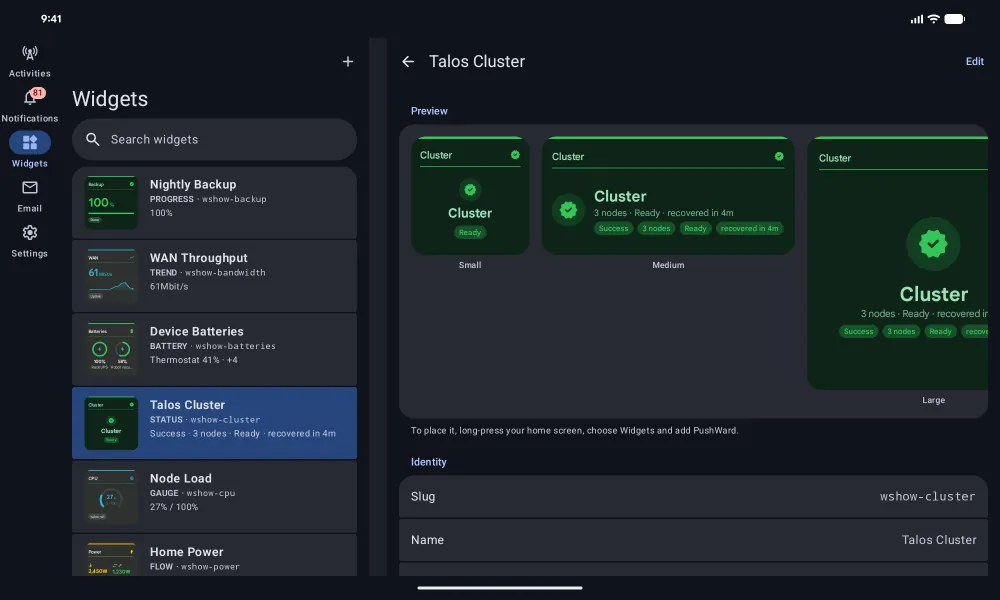
The Widgets tab on an Android tablet: the list beside the selected widget, with its small, medium and large layouts.
Authentication
The widgets API is reachable with an integration key (hlk_) with widgets at write (or read for a key that only reads them).