এন্টারপ্রাইজ
OpenID Connect বা SAML দিয়ে আপনার আইডেন্টিটি প্রোভাইডারের মাধ্যমে সদস্যদের কনসোলে সাইন ইন করান, Okta বা Microsoft Entra ID থেকে SCIM দিয়ে তাঁদের প্রভিশন করুন, আপনার ইমেইল ডোমেইন যাচাই করুন এবং অডিট লগ এক্সপোর্ট করুন।
The Enterprise plan
Enterprise is an organization plan on top of everything PushWard Team has. It adds:
- Verified domains: the email domains your organization proves it owns.
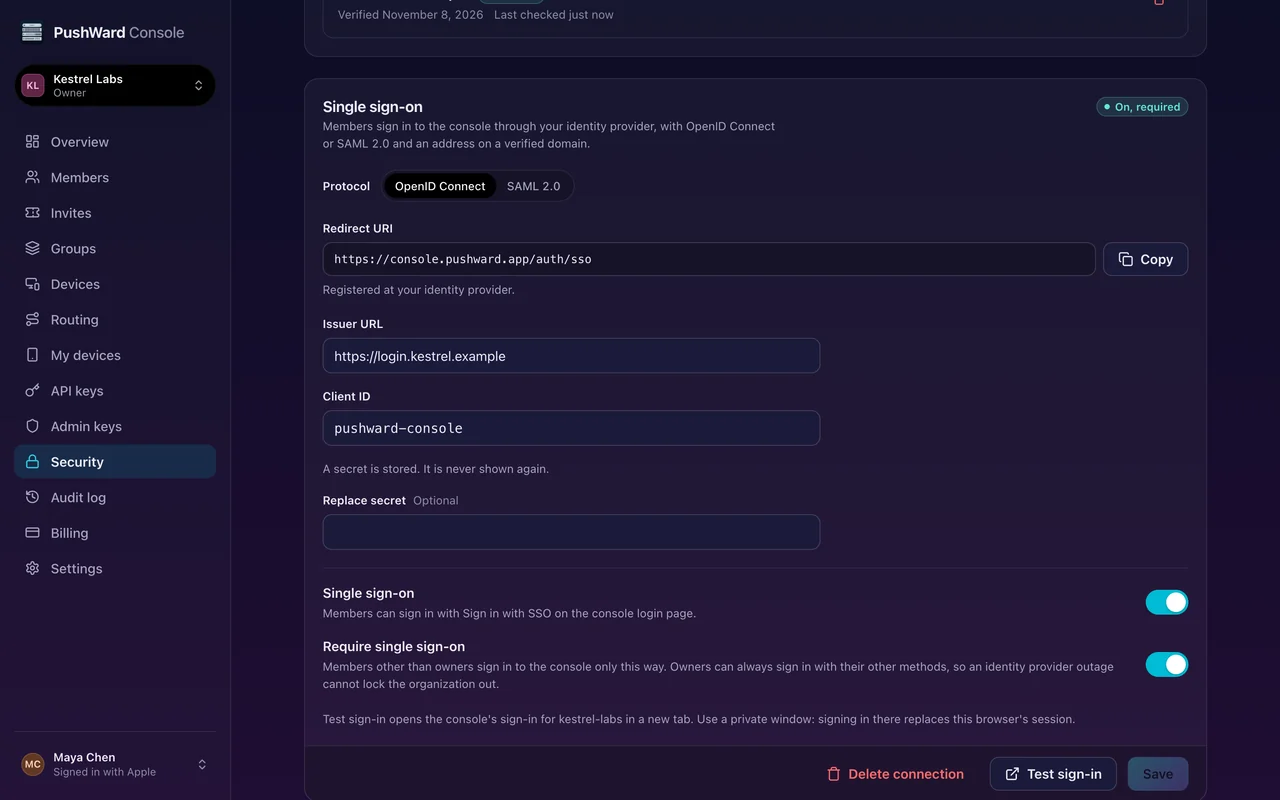
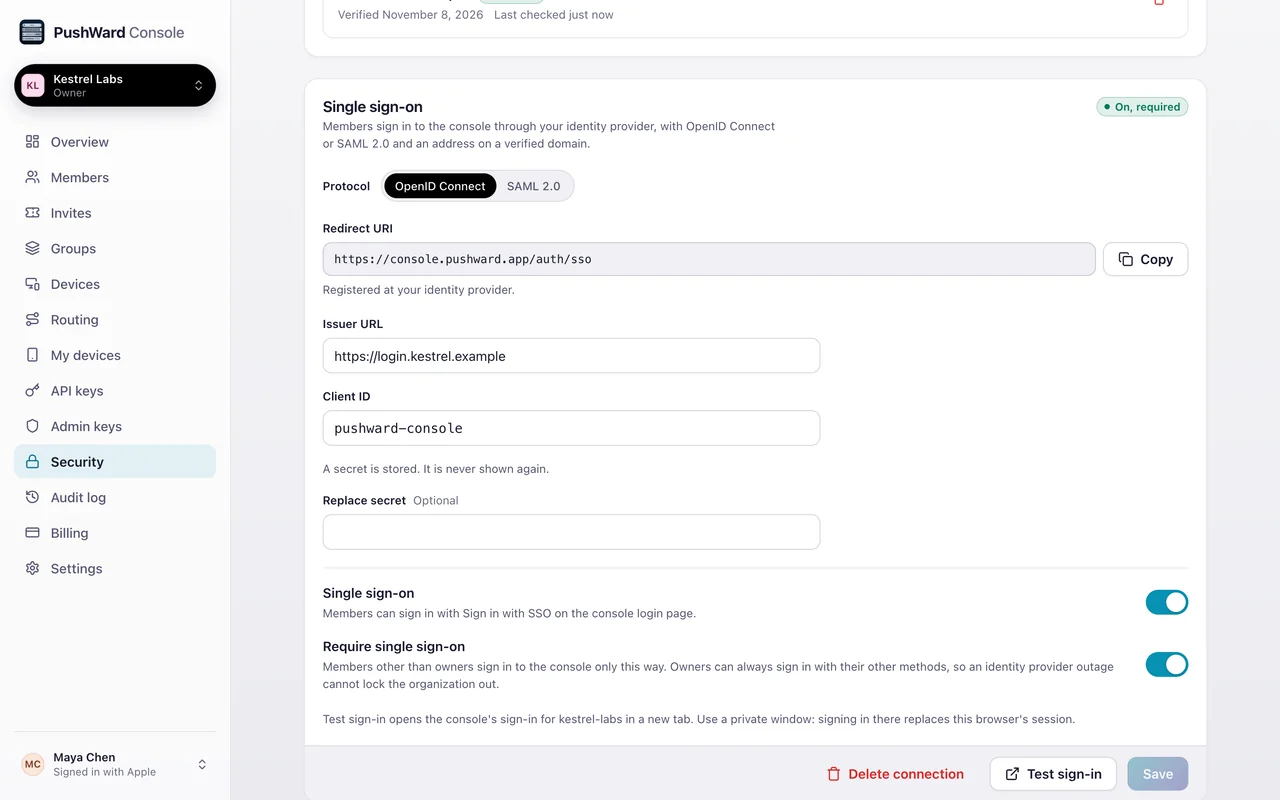
- Single sign-on to the console through your identity provider, with OpenID Connect or SAML 2.0.
- SCIM provisioning: your identity provider adds and removes members and pushes its groups.
- Audit log export as CSV.
- Limits set for your organization: we can set the caps on Limits, such as members, sending keys, groups, widgets or notifications a day, to what we agree.
The audit log keeps 12 months of events on every plan, Enterprise included.
How it is bought
Enterprise is not sold at checkout. Write to [email protected] with your organization's name and the number of seats. It starts at $12 per seat per month, billed yearly, from 20 seats.
- We put the organization on the Enterprise plan with the seats and any limits we agreed. It has every Enterprise feature from then on, before the first invoice is paid.
- Paddle.com, our reseller and merchant of record, emails the invoice to your billing contact with payment terms, 30 days unless we agree otherwise; it is usually paid by bank transfer. Paddle adds VAT or sales tax where it applies.
- Each year Paddle sends a new invoice with the same terms. More or fewer seats during the year: write to us; the seats change at once and the prorated difference is on the next invoice.
- An organization paying for Team moves over once its Team subscription is canceled at Paddle, which we do with you before the switch.
- If the Enterprise subscription is canceled, the organization becomes read-only and its keys are refused, as a Team organization does. It is not deleted automatically: an owner can delete it in the console, or ask us to.
Who can change what
| Role | Enterprise settings |
|---|---|
| Owner | Everything below, and the only role that sets up single sign-on or changes its identity provider: the protocol, the OpenID Connect issuer and client ID, and the SAML entity ID, SSO URL and signing certificates. |
| Admin | Adds, verifies and removes domains, turns single sign-on on and off, requires it, replaces the OpenID Connect client secret, creates SCIM keys and exports the audit log. |
| Viewer | Reads the audit log and exports it. |
| Member, Billing | Nothing on the Security page. |
hlo_ org admin keys (see Manage your org as code) reach these settings
through the API. A key at level read reads the verified domains, their TXT record names and values included,
and the single sign-on settings (never the client secret), where a viewer's console session gets 403, and
reads and exports the audit log. A key at level manage also adds, verifies and removes domains, turns single
sign-on on and off, requires it, replaces the OpenID Connect client secret, saves the same SAML metadata again and
deletes the connection. No key sets up single sign-on, changes its identity provider or creates a SCIM key. An
organization without the Enterprise plan sees
"Single sign-on is not available for this organization" on the Security page, and the API answers 403 org.enterprise_required.
Verified domains
Single sign-on and SCIM only accept addresses on a domain your organization verified, so a domain comes first. Open Security in the console, enter the domain under Verified domains and select Add domain. PushWard shows the TXT record that proves it:
Name:   _pushward-verification.example.com
Value:  pushward-verification=<64 hex characters>
Create the record at your DNS provider, then select Verify. A new record can take a while to show; select Verify again once it does.


- A domain is exactly that domain:
eu.example.comis not covered byexample.com, add it on its own. Up to 20 domains per organization. - Not an IP address and not a public suffix such as
comorco.uk. An internationalized domain is stored in punycode (xn--...). - One organization per domain: the first to verify it holds it. Another organization verifying it gets
409org.domain_taken, which never names the holder. If an organization you do not control (an old test organization, say) holds your domain, write to [email protected]: once you prove the domain with a TXT record we name, we remove its claim. - PushWard looks the record up again every day, so keep it. After seven missed checks in a row the domain goes back to pending, with an event in the audit log, and single sign-on refuses addresses on it until you verify it again. A lookup that gets no answer from DNS counts as neither a hit nor a miss.
- Removing a domain, or one lapsing, ends the links PushWard keeps between your identity provider and the accounts on that domain. The last verified domain cannot be removed while single sign-on is on.
Single sign-on
With single sign-on on, members sign in to the console at console.pushward.app through your identity
provider, with an address on a verified domain. It covers the console only: the PushWard apps keep their own sign-in
with Apple, Google or an email code.
Setting it up
- Verify a domain (above).
- Register PushWard at your identity provider with the values on the Security page: for OpenID Connect the redirect URI
https://console.pushward.app/auth/sso, for SAML the ACS URL and SP entity ID (see SAML 2.0). The guides below walk through Okta, Microsoft Entra ID and Google Workspace. - Enter the provider's settings under Single sign-on: the issuer URL, client ID and client secret for OpenID Connect, or the metadata URL or XML for SAML, and select Save. PushWard reads the provider's discovery document or metadata when you save and says what is missing if it cannot use it.
- Turn on Single sign-on, save, and select Test sign-in. It opens the console's sign-in for your organization in a new tab: use a private window, since signing in there replaces the session of the window you are in.
- Turn on Require single sign-on once it works, if members should sign in only this way.


Changing single sign-on asks for a sign-in within the last 15 minutes; the console sends you through sign-in and back. The client secret is stored encrypted and never shown again; leave the field empty to keep it.
How members sign in
On the console's sign-in page they choose Sign in with SSO, enter their work email and continue to the
identity provider. A link straight to your organization's sign-in also works: https://console.pushward.app/login?sso=<org slug>. A sign-in started at the identity provider (an app
tile on its dashboard) is refused, so hide the tile or point it at that link.


- The first sign-in uses the PushWard account that already has that address as a sign-in address, or makes a new account with it. PushWard then remembers the provider's identifier for the person (the OpenID Connect subject or the SAML NameID) and never merges two accounts.
- Someone who is not a member yet joins while the organization is active. An open email invite to that exact address is used, with its role and the seat it holds. Otherwise they join as a member on a free seat: every open email invite holds its seat from the moment it is sent, so a sign-in never takes one an invite is waiting for. Without a free seat they are signed in but not added, and the console tells them to ask an admin for more seats. Joining starts the organization's ongoing Live Activities on their devices, as an invite does.
- Once your identity provider has sent PushWard any user through SCIM, a sign-in joins only someone the provider assigned and has not deactivated, found by the SCIM
userName: it must be the address they sign in with, or another sign-in address on their PushWard account. Anyone else is signed in but not added, and the console tells them to ask their admin to assign them to PushWard. Assign people in the provider rather than letting them sign in first. Members already in the organization are not affected. This stays so after you stop using SCIM, until we clear it (see Stopping SCIM). - The address must be on one of your verified domains exactly, or the sign-in is refused with "This address is not on a domain this organization verified."
Require single sign-on
With it on, a member who is not an owner can open the organization in the console only in a session signed in through its single sign-on; any other session gets "This organization requires signing in with single sign-on." Owners are exempt, so an identity provider outage cannot lock the organization out: an owner signs in with Apple, Google or an email code and turns Require single sign-on, or single sign-on itself, off until the provider works again. An account single sign-on created holds its address as an email sign-in, so the email code works for it. Turning it off restores access at once. The PushWard apps and org admin keys are not affected.
Changing or removing the provider
- A new OpenID Connect issuer or client ID, a SAML metadata with another entity ID, a switch between OpenID Connect and SAML, or deleting the connection drops every link PushWard keeps to the old provider. On their next single sign-on sign-in people are linked again by their address.
- A SAML signing certificate rotation or a new SSO URL keeps the links. An owner saves the new metadata before the provider switches certificates: with both certificates during the provider's overlap, then with the new one alone. Anyone midway through signing in at that moment starts again.
- Deleting the connection: console sessions it signed in stay valid until they expire.
SAML 2.0
For identity providers that speak only SAML, choose SAML 2.0 as the protocol. Register PushWard with these values, which the Security page shows with your organization's id filled in:
| Value | Address |
|---|---|
| ACS URL (Reply URL, HTTP-POST) | https://api.pushward.app/auth/saml/<org id>/acs |
| SP entity ID (audience) | https://api.pushward.app/auth/saml/<org id> |
| SP metadata URL | https://api.pushward.app/auth/saml/<org id>/metadata, served once the connection is SAML |


- Metadata. Give PushWard the provider's metadata URL (https; read once, when you save) or paste the XML, one EntityDescriptor up to 512 KB. It needs an https SSO URL with the HTTP-Redirect binding and a signing certificate.
- Signing. Sign the assertion or the whole response, with SHA-256 or stronger. SHA-1 is refused.
- Encryption. Leave assertion encryption off; encrypted assertions are refused.
- NameID. A persistent identifier or the email address (format
emailAddress), never a transient one. With any NameID but an address, send the address in an attribute namedemail;mailandhttp://schemas.xmlsoap.org/ws/2005/05/identity/claims/emailaddresswork too. - Clocks. PushWard allows 2 minutes of clock difference, and a sign-in must finish within 10 minutes of starting.
- Not supported: sign-in started at the identity provider, encrypted assertions, signed authentication requests, single logout, the artifact binding and metadata aggregates (upload the one EntityDescriptor for PushWard).
When the provider's answer is refused, the console's sign-in page says why:
| The console says | Check |
|---|---|
| Your identity provider's response could not be verified. | The signing certificate and algorithm, both entity IDs, the ACS URL, and a NameID that is not transient. |
| Your identity provider did not send an email address. | The NameID format, or an email attribute. |
| Encrypted assertions are not supported. | Turn assertion encryption off for PushWard. |
| The sign-in took too long. | The clocks, or a sign-in left open for over 10 minutes. |
| This sign-in link was already used or was not started here. | A sign-in started at the identity provider, or a page sent twice. |
Identity provider guides
Each guide registers PushWard with the values from your Security page, then gives the settings to enter there. Assign
the app to the people and groups who should sign in. Replace <org id> with your organization's id
and <org slug> with its slug, as the Security page and the address bar show them.
Okta
OpenID Connect
- In the Admin Console, go to Applications and Resources > Applications, select Create App Integration and then Classic experience. Choose OIDC - OpenID Connect as the sign-in method and Web Application.
- Name it PushWard, keep the grant type Authorization Code, and set Sign-in redirect URIs to
https://console.pushward.app/auth/sso. Under Assignments, limit access to the groups who sign in. Save. - On the General tab, copy the Client ID and the client secret.
- In PushWard: Issuer URL
https://<your Okta domain>(such ashttps://example.okta.com), the client ID and the client secret.
Okta does not add SCIM provisioning to an OpenID Connect app made in the Classic experience. To provision from Okta as well, either use SAML (below), whose app takes SCIM on its General tab, or, in an Okta Identity Engine org, choose Okta Integration Wizard under Create App Integration instead: it builds one private app integration with OpenID Connect sign-in and SCIM 2.0 provisioning, with the SCIM key as a Bearer token. Which of its capabilities your org gets depends on your Okta subscription, and Classic Engine orgs do not have it.
SAML
- Go to Applications and Resources > Applications, select Create App Integration and then Classic experience, and choose SAML 2.0. Name it PushWard; tick Do not display application icon to users, since sign-ins from the Okta dashboard are refused.
- Single sign-on URL: the ACS URL, with Use this for Recipient URL and Destination URL kept on. Audience URI (SP Entity ID): the SP entity ID. Name ID format: EmailAddress. Application username: Email.
- Keep Okta's defaults under Show Advanced Settings: response and assertion signed, RSA-SHA256, SHA256 digest, assertion unencrypted. Finish as an internal app.
- On the Sign On tab, under Metadata details, copy the Metadata URL and save it in PushWard as the metadata URL.
Microsoft Entra ID
Every address must be on a domain verified in PushWard. A tenant with only its *.onmicrosoft.com domain cannot publish the TXT record, so add a custom domain to the tenant first. A user
principal name on *.onmicrosoft.com is refused where it is the address PushWard receives, as the SAML Name
ID or the SCIM userName: send mail there instead. A guest from another tenant is refused unless
that address is on a verified domain.
OpenID Connect (app registration)
- In the Microsoft Entra admin center, go to Entra ID > App registrations and select New registration. Name it PushWard, choose the single-tenant account type, and under Redirect URI pick Web and enter
https://console.pushward.app/auth/sso. Register. - On the Overview, copy the Application (client) ID and the Directory (tenant) ID.
- Under Certificates & secrets, add a New client secret and copy its Value; Entra shows it once. Note its expiry: sign-ins fail once it expires, until an admin saves a new one in PushWard. With Require single sign-on on, only an owner can still sign in to the console to do that; an org admin key at level
managecan also save it through the API. - Under Token configuration, add the optional claim email to the ID token, and tick Turn on the Microsoft Graph email permission when Entra offers it. The address comes from the user's mail attribute and must be on a verified domain. A user with no email address set in Entra cannot sign in this way: PushWard refuses them.
- Under API permissions, add the delegated Microsoft Graph permissions
openid,emailandprofile, then select Grant admin consent for the tenant. Without it, each person gets Entra's consent prompt, and where the tenant restricts user consent or the app requires assignment, people who are not admins stop at Entra's approval page and PushWard never sees the attempt. - In PushWard: Issuer URL
https://login.microsoftonline.com/<tenant id>/v2.0, with your tenant ID rather thancommonororganizations, the client ID and the secret's value.
Every user of the tenant can sign in unless you turn on Assignment required? in the app's Properties under Enterprise apps and assign users and groups there. Microsoft requires admin consent for an app that requires assignment, which is the API permissions step above.
SAML (enterprise application)
- Go to Entra ID > Enterprise apps, select New application, then Create your own application. Name it PushWard and choose to integrate an application you don't find in the gallery.
- Under Single sign-on, choose SAML. In Basic SAML Configuration: Identifier (Entity ID) the SP entity ID, Reply URL (Assertion Consumer Service URL) the ACS URL, and Sign on URL
https://console.pushward.app/login?sso=<org slug>, so the My Apps tile starts the sign-in at PushWard. Save. - Under Attributes & Claims, the Unique User Identifier (Name ID) is the user principal name as an email address. If your user principal names are not your people's email addresses, change its source to
user.mail. PushWard identifies each person by the Name ID, so without SCIM a person whose user principal name changes comes back as a new, empty account and their role stays on the old one. SCIM carries the change over, except for an owner, whom it never renames. - Under SAML Certificates, copy the App Federation Metadata Url and save it in PushWard as the metadata URL. Entra signs the assertion with SHA-256 and leaves it unencrypted by default. Entra sends expiry warnings only to the app's notification list, and can switch by itself to a valid inactive certificate when the active one expires. So an owner saves the metadata URL in PushWard again as soon as a new certificate is added, which makes PushWard trust both.
- Under Users and groups, assign who signs in.
Google Workspace
OpenID Connect (Google Cloud OAuth client)
- In the Google Cloud console, in a project of your Workspace organization, open Google Auth Platform. Fill in Branding if asked, and under Audience set the user type to Internal, so only your Workspace's accounts can sign in.
- Under Clients, select Create client. Application type Web application, name PushWard, and add
https://console.pushward.app/auth/ssounder Authorized redirect URIs. Create. - Copy the client ID and client secret; Google shows the secret only now.
- In PushWard: Issuer URL
https://accounts.google.com, the client ID and the client secret.
SAML (custom SAML app)
- In the Google Admin console, go to Apps > Web and mobile apps, select Add app > Add custom SAML app and name it PushWard.
- On Google Identity Provider details, download the IdP metadata.
- On Service provider details: ACS URL the ACS URL, Entity ID the SP entity ID, Signed response left off (Google signs the assertion), Name ID format EMAIL and Name ID Basic Information > Primary email. Finish.
- Under User access, turn the app on for everyone or for the organizational units who sign in. Google can take up to 24 hours to apply it.
- In PushWard, choose Paste XML and paste the downloaded metadata, or choose the file.
SCIM provisioning
Your identity provider can create, update and remove the organization's members through SCIM 2.0, and push its groups into the organization's groups. Every address it provisions must be on a verified domain. People it adds join through single sign-on (their first sign-in uses the invite SCIM made) or through the emailed invite.
Once the provider has sent any user, single sign-on joins only the people it assigned and has not deactivated, so the userName it sends must be the address each person signs in with: anyone else who signs in is not added
(see How members sign in). Members already in the organization are not affected. This holds
until we clear the organization's SCIM state, even after the provider stops (see Stopping
SCIM).
| Setting | Value |
|---|---|
| Base URL (SCIM connector base URL, Tenant URL) | https://api.pushward.app/scim/v2 |
| Authentication | HTTP header Authorization: Bearer hlo_..., with a SCIM key |


The SCIM key
Select Create SCIM key under User provisioning (SCIM): it creates an org admin key at
level manage named "SCIM provisioning" and shows its token once. Give that token to the identity provider.
- Create it as an owner. SCIM removes only the people the key's creator may remove in the console: an owner's key removes admins, billing members, members and viewers, an admin's key only members and viewers. With an admin's key the provider reports "This key cannot remove a member with that role" for the rest, and nothing changes.
- The key stops working when its creator leaves the organization or stops being an owner or admin. Replace it then with a new one.
- A key at level
readonly reads. Revoking the key under Admin keys stops the provider at once and revokes the invites it sent. - The provider can send up to 600 requests a minute per key; past that it gets
429withRetry-After.
What it does and does not
- Adding someone. A person assigned in the provider who is not in the organization gets an emailed member invite that holds a seat. Without a free seat the provider gets "The organization has no free seat." until you add seats. An address that bounced or unsubscribed gets the invite and its seat but no email: that person joins by signing in with SSO. A member who already has the address (as their label or a sign-in address) is linked, and nothing else changes. A PushWard account outside the organization is never added directly: they join by signing in with SSO or through the invite.
- Removing someone. Unassigning or deactivating a person removes the member, as a removal in the console does: their invites and the admin keys they created are revoked and the organization's Live Activities end on their devices. Reactivating mails a new invite. A deactivation the provider repeats, or its delete of a deactivated user, also removes a member who holds that address again, such as someone an admin invited back in the console: to keep them, assign them in the provider again.
- A new address. Before the person joins, the invite is replaced by one for the new address. After, the member's label changes and a sign-in that uses the old address moves to the new one, so the person keeps their account.
- Groups. A pushed group becomes a group of the organization named after it: lowercased, with each run of other characters as a dash, up to 40 characters ("Engineering Team" becomes
engineering-team). An existing group of that name made in the console is taken over. Two provider groups whose names come out the same never share one: the second is refused with "Another group already uses the PushWard name ..."; rename one of them. Membership changes reach the routing at once, so Live Activities start and end on the devices that gain or lose them. Members added to a group in the console stay where they are. - Roles. People SCIM adds join as members; set roles in the console. SCIM never changes a role.
- Owners. SCIM never removes or renames an owner ("Owners are managed in the PushWard console."). Remove an owner in the console.
- Attributes. PushWard takes
userName(the work email),active,externalId,displayName,name.givenName,name.familyNameand the work email. Updates to the other attributes of the SCIM User schema and its enterprise extension are ignored, so those mappings can stay. In a PATCH, an attribute outside them is refused with400invalidPath; a POST or PUT body ignores it. - Audit log. Every change shows "through SCIM" with the key's name.
While the organization is restricted
When the organization is not active, for example after its subscription ended, offboarding keeps working: the provider
can still read, deactivate and delete users and remove people from groups. Creating or reactivating users, pushing
new groups, adding members, and renaming or deleting groups are refused with 403 "This needs the
Enterprise plan." until the organization is active again, and the provider retries them then. A group push that
removes some people and adds others is refused as a whole.
Okta
In the PushWard SAML app (above):
- On the General tab, under App Settings, select Edit, set Provisioning to SCIM and save.
- On the Provisioning tab, under Integration: SCIM connector base URL
https://api.pushward.app/scim/v2, Unique identifier field for usersuserName, provisioning actions Push New Users, Push Profile Updates and Push Groups, Authentication Mode HTTP Header with the SCIM key as the bearer token. Test the connector configuration and save. - Under To App, enable Create Users, Update User Attributes and Deactivate Users. Leave Sync Password off.
- Keep the application username format Email, and the attribute mappings to userName, givenName, familyName, email and displayName.
- On the Push Groups tab, push groups by name or by rule.
Microsoft Entra ID
Use the PushWard enterprise application from the SAML guide. Entra ID does not offer automatic provisioning for an app registration, so on the OpenID Connect path create a second app for SCIM: under Enterprise apps select New application, then Create your own application, name it (PushWard SCIM, say), choose to integrate an application you don't find in the gallery, and assign it the same users and groups as the app registration. Then, in that app:
- Under Provisioning, select New configuration. Keep bearer authentication, enter Tenant URL
https://api.pushward.app/scim/v2and Secret token the SCIM key, select Test connection, then Create. - Under Settings, set the scope to sync only assigned users and groups.
- Under Mappings, in Provision Microsoft Entra ID Users, keep
userName, mapped from the attribute people sign in with: for OpenID Connectmail, which theemailclaim carries; for SAML the Name ID's source,userPrincipalNameunless you changed it touser.mail. Entra ID mapsuserPrincipalNameby default, so on the OpenID Connect path switch it tomailunless every user principal name is the person's mail address; a user principal name on*.onmicrosoft.comis refused (see the note on domains). Keep alsoactive,displayName,name.givenName,name.familyName,emails[type eq "work"].value(frommail) andexternalId. Entra's default source forexternalId,mailNickname, is not always unique, and a second user with the same value is refused, so map it fromobjectId. PushWard ignores the other attributes (job title, addresses, phone numbers, preferred language, employee number, department, manager), so they can stay or be deleted. - In Provision Microsoft Entra ID Groups, keep
displayName,externalIdandmembers. - Start provisioning. The first cycle provisions everyone assigned.
Undoing a bad provisioning run
- Stop the provider first (Okta: turn off Deactivate Users and Push Groups; Entra ID: stop provisioning), so the next cycle does not repeat it.
- To stop everything at once, revoke the SCIM key under Admin keys. Single sign-on still adds only the people the provider assigned (see Stopping SCIM).
- Find what changed in the audit log or its export: every change carries "through SCIM" and the key's name.
- Invite people removed by mistake again in the console, or reactivate them in the provider once it is fixed. Someone you invite back in the console must be assigned in the provider again as well: while it still has them deactivated, a deactivation it repeats, or its delete of them, removes them again. With Okta, their groups come back with the next group push; with Entra ID, select Restart provisioning on the app's provisioning page, so Entra evaluates every user and group again, and check that the groups came back: Entra does not send unchanged group membership by itself. Either way, set their role again in the console.
Stopping SCIM
Turning provisioning off at the provider or revoking the SCIM key stops the provider, but PushWard keeps its record of the users the provider sent. Single sign-on goes on adding only those people: everyone else who signs in is still told "Ask your admin to assign you to PushWard.", and assigning them in the provider no longer reaches PushWard. To open single sign-on to everyone on your verified domains again, write to [email protected] once the provider is disconnected, and we clear the organization's SCIM state. Nobody is removed: members, invites and groups stay.
Audit log export
On the Audit log page, select Export CSV, choose the days (the last 30 by default, in your time zone) and select Download CSV.


- One export covers up to 366 days. PushWard keeps the audit log for 12 months on every plan, so older events are gone.
- Owners, admins and viewers can export, and org admin keys at either level. Each export is itself recorded in the audit log.
- Up to 3 exports a minute per organization; past that, "Too many exports, try again in a minute."
- The file is named
pushward-audit-<org slug>-<from>-<to>.csvand lists the events oldest first.
| Column | Holds |
|---|---|
id | The event's id. |
time | When it happened, RFC 3339 in UTC. |
actor_kind | Who made the change: a person, an admin key, or the system. |
actor_user_id | The person's user id. |
key_id, key_name | The admin key that made it, if one did. |
action | What happened, such as member.joined or org.sso_updated. |
target_kind, target_id | What it happened to. |
ip, user_agent | Where the request came from. Filled for owners and admins only, blank in a viewer's export. |
metadata | The event's details as compact JSON. |
A cell that starts with =, +, -, @, a tab or a carriage return gets a
leading ', so a spreadsheet does not run it as a formula. Over the API it is GET /orgs/{org_id}/audit-events/export?from=...&to=... with an hlo_ key; from defaults to 365 days before to, and to to now.
CLI and Terraform
With an hlo_ org admin key the pushward CLI (1.12.0 or later) verifies
domains, turns single sign-on on and off, and exports the audit log:
pushward org domain add example.com                 # prints the TXT record to publish
pushward org domain verify example.com --wait 30m   # tries again every 15s until the record shows up
pushward org sso show                               # the redirect URI, or the SAML values to register
pushward org sso set --enabled --require-sso        # flags left out keep their stored value
pushward org audit export --from 2026-01-01 --to 2026-04-01 -o audit.csv
The Terraform provider has pushward_org_domain, pushward_org_domain_verification and pushward_org_sso_connection; Manage your org as code has an example. An admin key acts as an admin at most, so an owner sets single sign-on up in the console first.
Errors
| Code | Status | When |
|---|---|---|
org.enterprise_required | 403 | The organization is not on the Enterprise plan, or it is not active. |
org.domain_invalid | 422 | Not a domain: an IP address or a public suffix. |
org.domain_exists, org.domain_limit | 409 | The organization already has that domain, or has 20. |
org.domain_taken | 409 | Another organization verified the domain first. |
org.domain_not_verified | 422 | The TXT record is missing or does not match. A 503 means DNS did not answer; try again. |
org.sso_needs_domain | 409 | Turning single sign-on on without a verified domain, or removing the last one while it is on. |
org.sso_discovery_failed, org.sso_metadata_invalid | 422 | PushWard cannot use the provider's discovery document or metadata; the detail says why. |
org.sso_secret_required | 422 | A new OpenID Connect provider without its client secret. |
org.permission_denied | 403 | An admin or admin key setting up single sign-on or changing its identity provider. |
org.sso_required | 403 | A console session that did not sign in through the organization's single sign-on, while it is required. |
org.audit_range_invalid | 422 | An export whose start is after its end, or longer than 366 days. |
What PushWard keeps from your identity provider, and for how long, is in the privacy policy.